
Chapter 9 · 9.2
Creating a public link (view or edit)
Watch it in a short video
With a public link, you share a document with someone who doesn't have an account in your WebOké Nextcloud, for example a client or your accountant. Anyone with the link can open the document in their browser. Nothing needs to be installed.
Creating a link
- Open the sharing sidebar of the file, as in Sharing a document with a colleague.
- Click the plus icon next to Create public link.
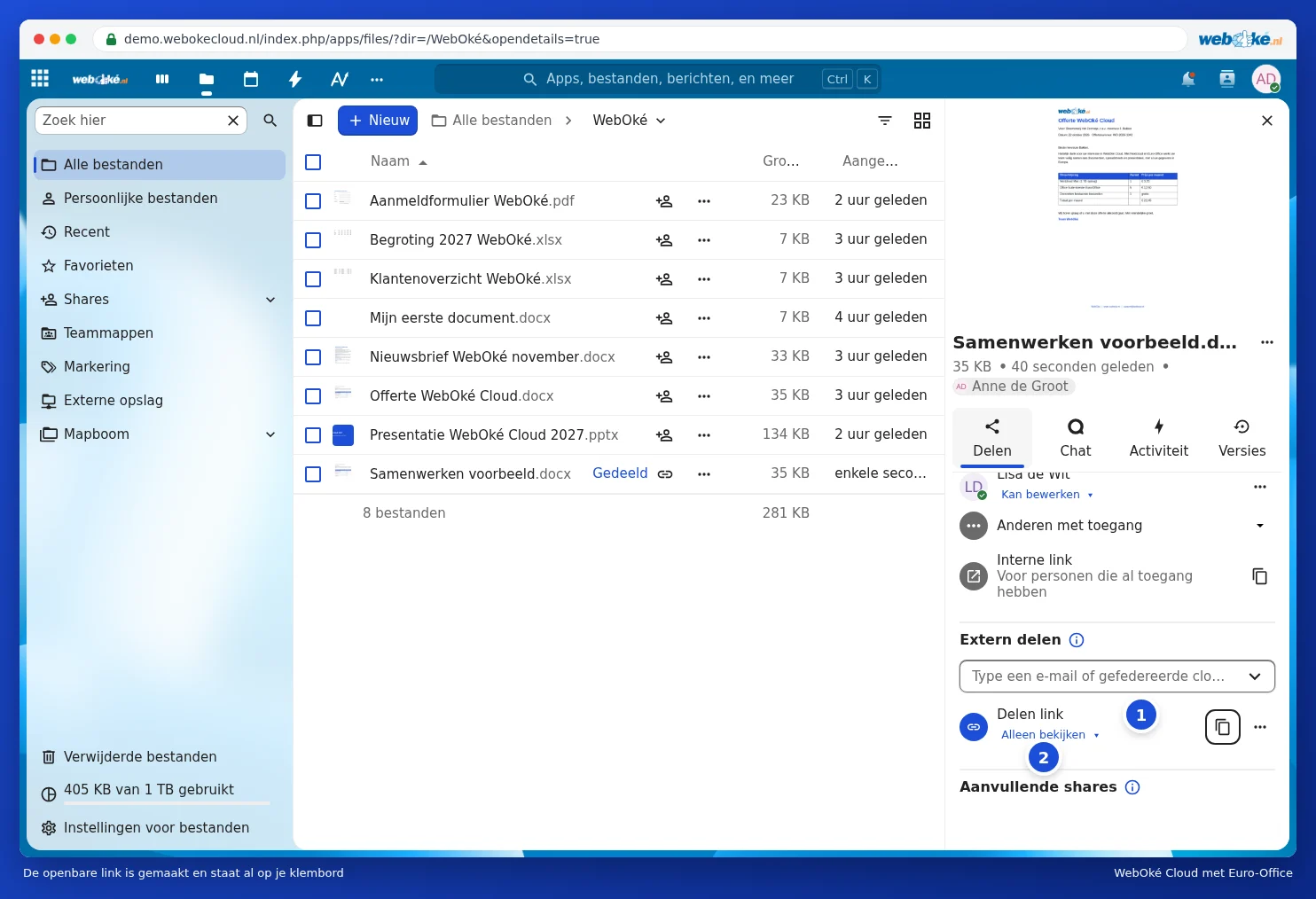
- The link is created (1) and immediately copied to your clipboard. Paste it into an email or chat message with Ctrl + V (on Mac Cmd + V). Use the button with the two sheets to copy the link again later.
View or edit?
A new link is set to View only (2 in the previous image). Click on it to choose:
- View only (1): the recipient can read, print and download the document, but cannot change anything.
- Can edit (2): the recipient can edit the document in Euro-Office, just like you.

You can read what the recipient sees when they open the link in Sharing with someone outside your organisation.
The link menu
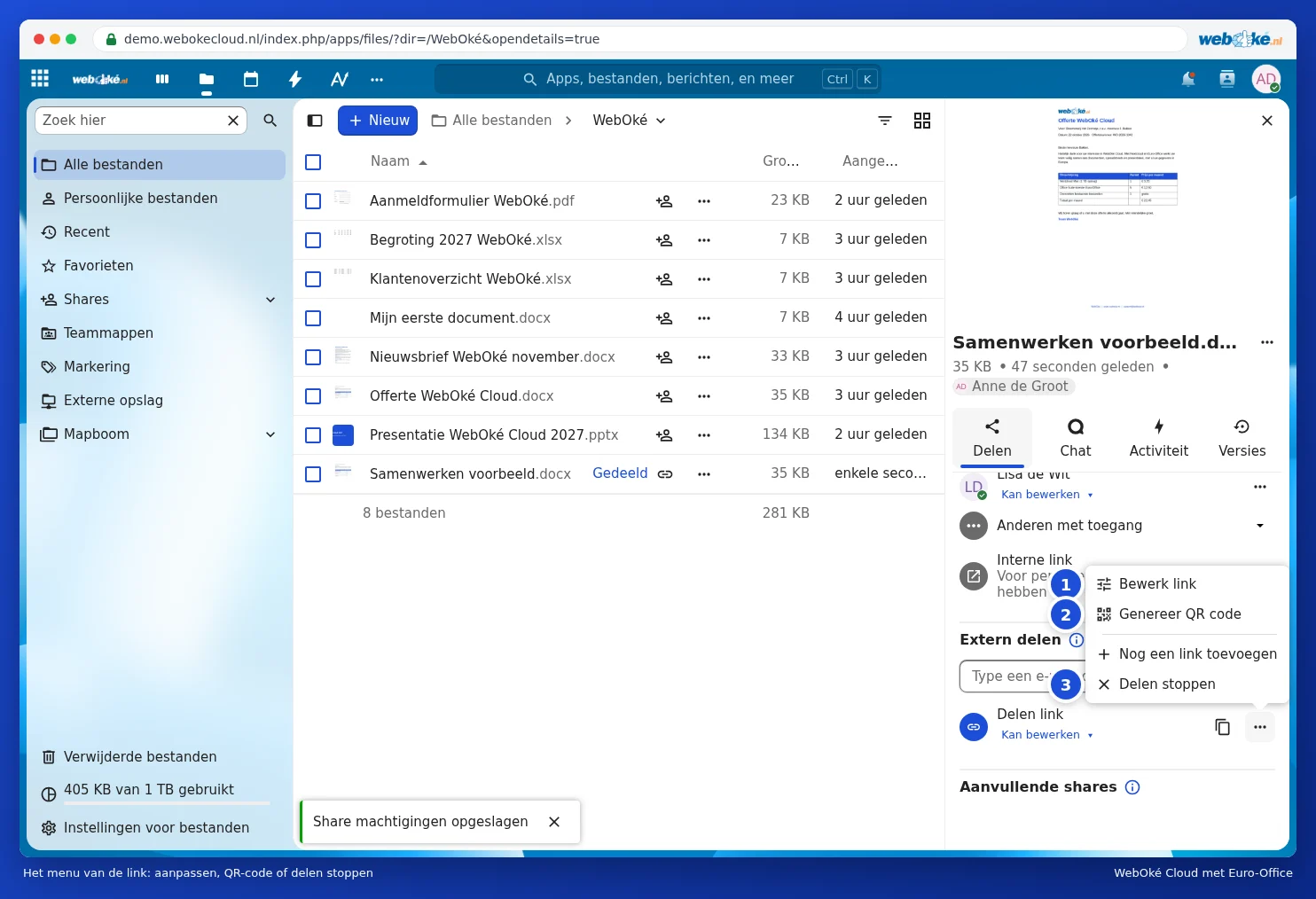
Use the three dots next to the link to open the menu:
- Customise link (1): adjust permissions, password and expiry date (see Password and expiration date on a link).
- Generate QR code (2): a QR code that someone can scan with their phone's camera.
- Add another link: a second link with different permissions, for example one to view and one to edit.
- Unshare (3): the link stops working immediately.
Please note: anyone with the link can open the document. Even if the link is forwarded. So only share a link with editing rights with people you trust, add a password and expiry date (Password and expiration date on a link), and stop sharing once the work is done.