
Chapter 15 · 15.23
Seeing what's changed between two versions of a contract
You send a contract to a client and get an edited version back, without the changes having been tracked. What exactly has changed? Let Euro-Office compare the two versions for you.
Step by step
- Open your own, original version. In the example: Contract versie 1.
- Go to the Collaboration tab and click Compare (1).
- Choose Document from storage (from your Nextcloud), Document from file (from your computer) or Document from URL.
- Choose the other version. Euro-Office marks all the differences in your document as tracked changes.

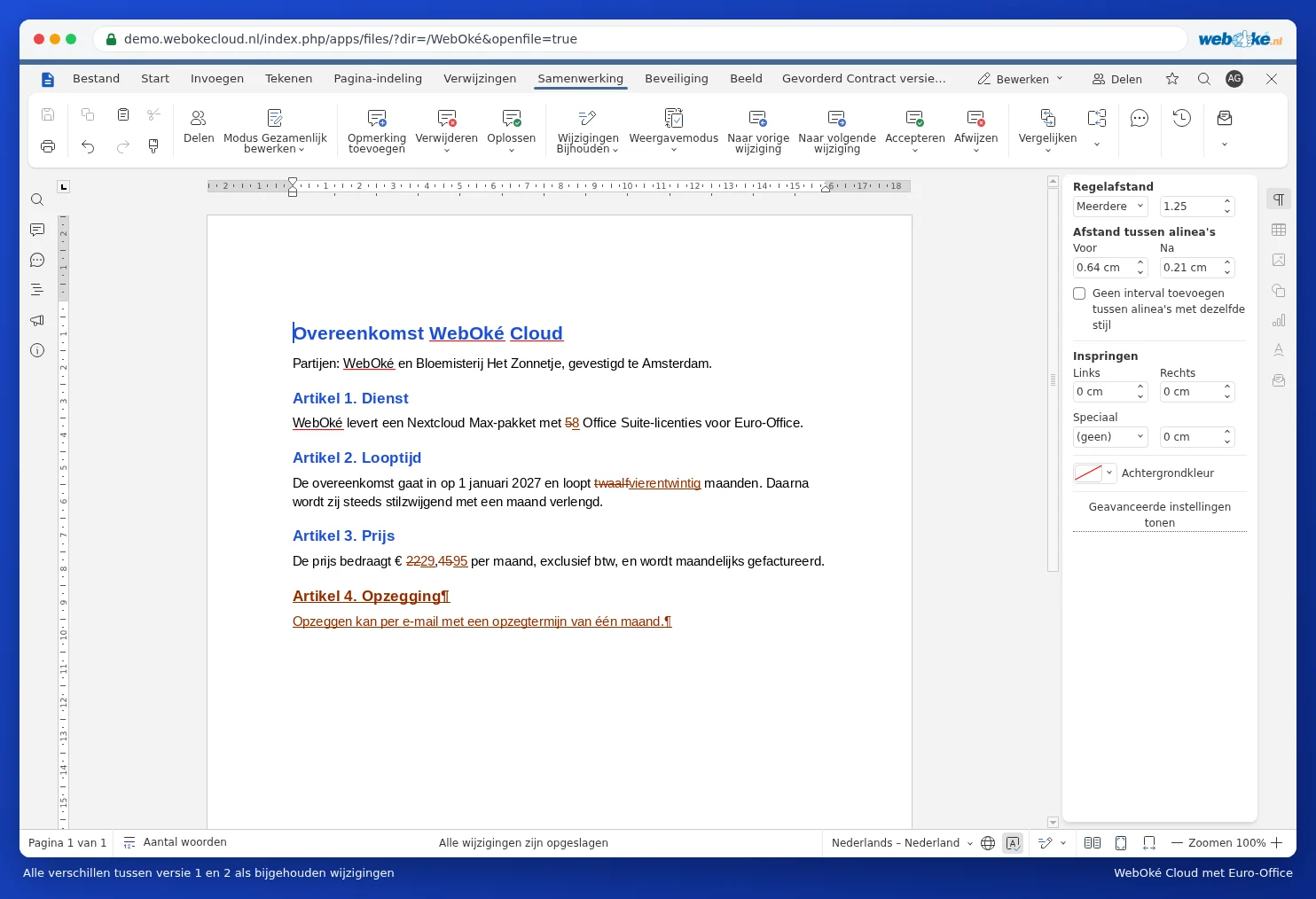
Going through the differences
- Use Display Mode to choose how you view it: Markup and balloons, Only markup, Final (the new version) or Original.
- Go through the changes one by one and choose Accept or Reject for each. See Removing comments and changes before sending a document.
- Use Combine (next to Compare) to merge two versions that both already contain tracked changes.
Pitfalls
- Euro-Office compares word by word. A single different character within a word counts as a changed word.
- If your version already contains tracked changes, these are treated as accepted when comparing. Euro-Office asks you about this first. If you're unsure, make a copy first.
- You can't compare while someone else is working in the document. Wait until your colleague is finished, or work in a copy.
- Working with a PDF? Convert it to a docx first (see Converting a PDF into an editable Word file) and then compare.