
Chapter 15 · 15.11
Protecting formulas in a shared spreadsheet
A timesheet or quote calculation in your WebOké Nextcloud gets filled in by the whole team. Before you know it, someone types a number over a formula, and the total no longer adds up. You want colleagues to fill in their data, but not touch the formulas.
How it works
Every cell has a Locked Cell checkbox, and by default it's ticked. This only takes effect once you protect the sheet. The trick: untick the box for the cells people are allowed to fill in, then protect the sheet.
Step by step
- Select the cells colleagues may fill in, for example the amounts in B3:B11. (Or select everything with Ctrl + A if almost everything needs to be editable.)
- Go to the Protection tab and untick Locked Cell (1).
- Select the cells containing formulas, such as the total in B12, and make sure Locked Cell is ticked there. If you also want to hide the formula, tick Hidden Formulas (2): the result stays visible, but the formula doesn't.
- Click Protect Sheet (3).
- Optionally choose a password and tick what everyone is still allowed to do, such as Format cells, Insert rows, Sort or Use AutoFilter. Click Protect.

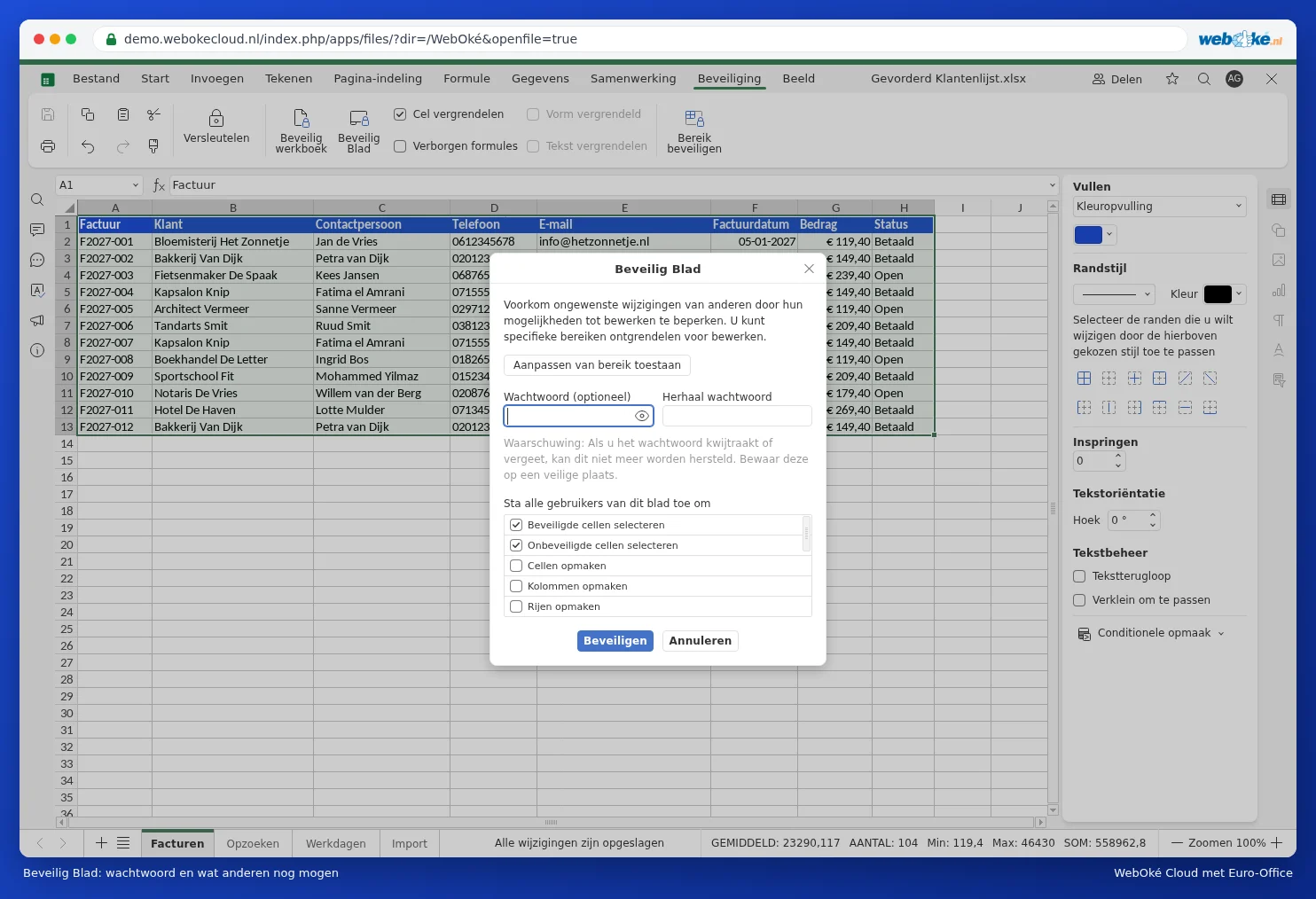
If someone now tries to change a formula, Euro-Office will let them know the cell is protected. Want to make changes yourself? Click Protect Sheet to remove the protection (using the password), then turn it back on afterwards.
Different permissions per person
With Allow edit ranges in the same window, you create ranges that specific people, or anyone with a password, are allowed to edit. This way, sales can fill in only the sales column and accounting only the costs.
Pitfalls
- A forgotten password can't be recovered, not even by WebOké. Keep it safe, for example in your password manager. Or protect without a password: that alone already prevents mistakes.
- On a protected sheet, no one can sort or filter unless you tick that option beforehand. So turn on the filters before protecting the sheet.
- Sheet protection is meant to guard against mistakes, not against malicious people. Anyone who can edit the file can also copy it. So only share sensitive data with people who are allowed to see it.
- Want to also stop sheets from being deleted or renamed? Use Protect workbook on the same tab.