
Chapter 5 · 5.5
DNS helpers: MX, SPF, DMARC, CAA and SRV
Some records are tricky to type by hand. That's why the DNS record window has extra fields and buttons for a few types. You open the window on the DNS tab with + Add record (see Managing DNS: adding, editing and deleting records) and then choose the type.
MX record
Click + MX record, or choose the MX type. The name is already set to @, the domain itself.
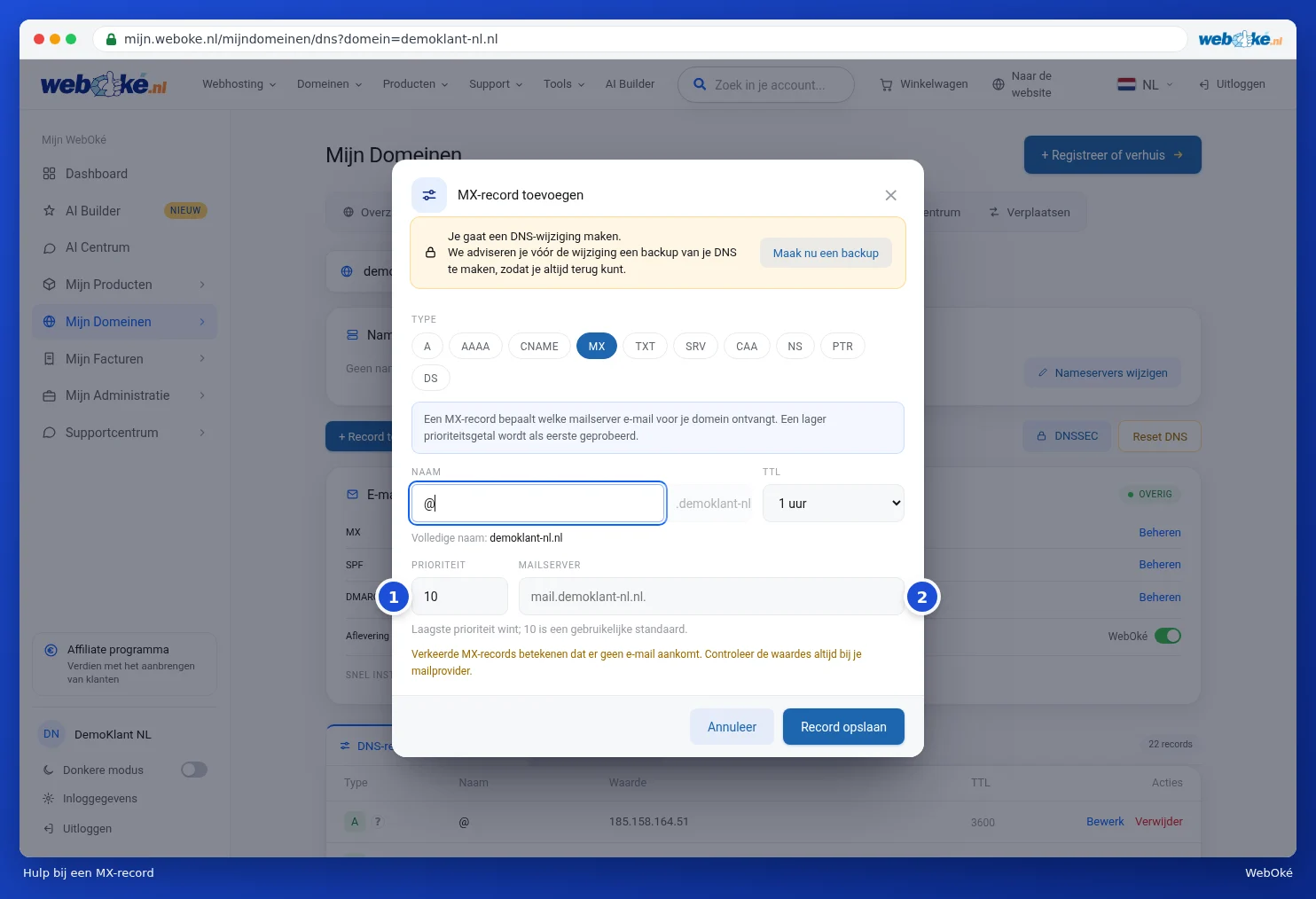
- Priority (1): if there are multiple MX records, the lowest is tried first. 10 is a common value.
- Mail server (2): the name of the mail server, with a dot at the end.
Please note: incorrect MX records mean that email will no longer arrive. Always copy the values from your mail provider.
SPF: who may send mail on behalf of your domain?
SPF is a TXT record with a list of servers that may send mail on behalf of your domain. Choose the TXT type and set TXT record type (1) to SPF. If you already have an SPF record, click Manage next to SPF in the Email settings card. The window will then read in your existing record.

- Use the checkboxes (2) to give permission to the servers from your MX records and to your domain's IP address.
- Under Add provider (3), click your mail provider or sending service: WebOké, Microsoft 365, Google Workspace, Proton Mail, mailbox.org, Mailgun, SendGrid or Zendesk. If yours isn't listed, type an include domain or server hostname yourself and click the plus.
- Choose the Mode (4): what recipients do with mail from a server that isn't on the list. Fail (recommended) is the strictest, SoftFail marks the mail as suspicious, and Neutral does nothing.
- Under Advanced Features you'll find separate IP addresses and a few rare options.
- Under Value (5) you see the record that will be saved. You can also edit it yourself here.
Please note: a domain may only have one SPF record. If there are two, SPF becomes invalid. So edit the existing record instead of creating a second one.
DMARC: what happens to forged mail?
DMARC tells mail servers what to do with email that falsely claims to come from your domain. Choose the TXT type and set TXT record type to DMARC, or click Manage next to DMARC in the Email settings card. The name automatically becomes _dmarc.
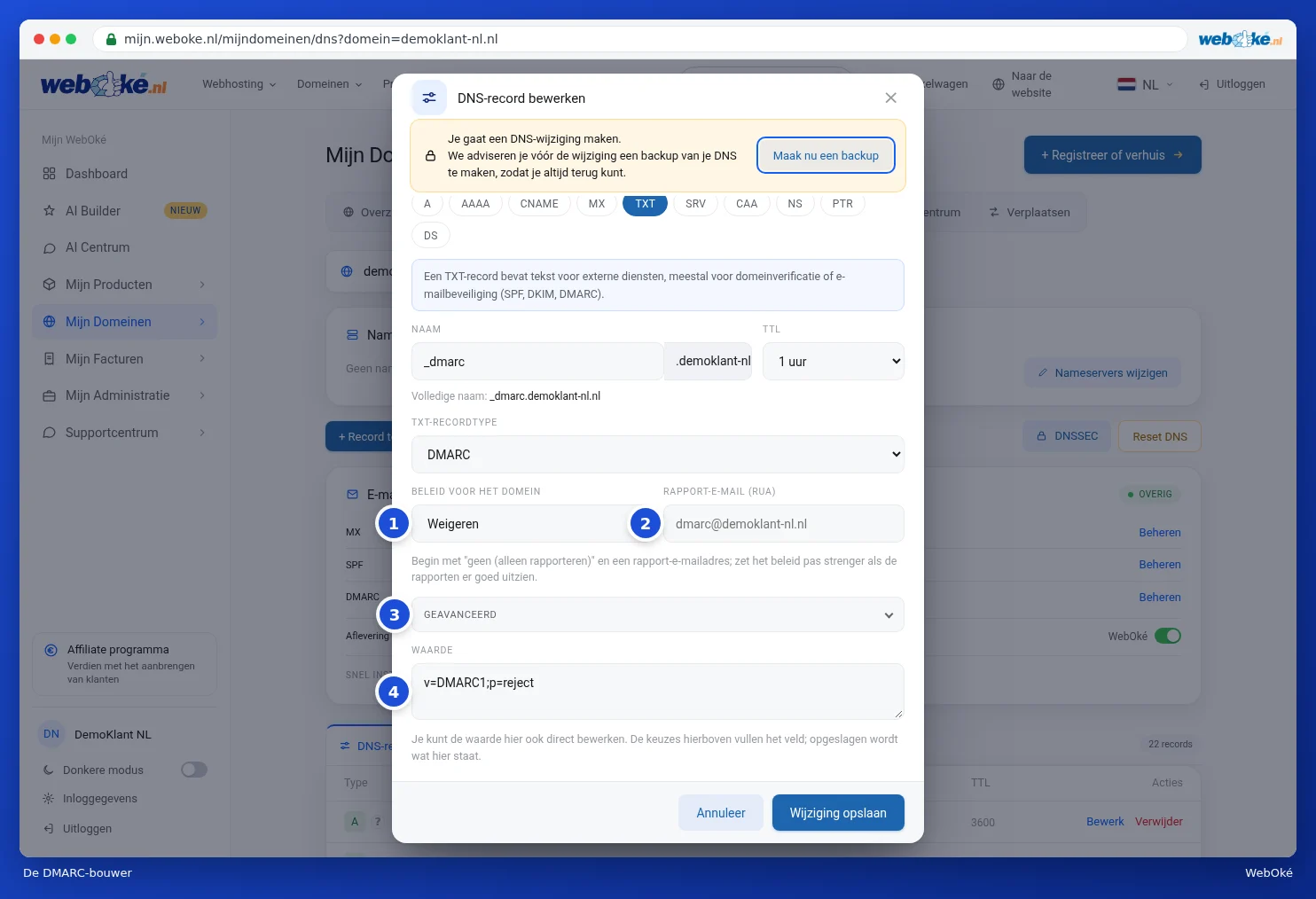
- Domain policy type (1): None, Quarantine or Decline.
- Aggregate email (RUA) (2): the address where you receive daily reports from large mail providers.
- Advanced Features (3): including a separate policy for subdomains, an address for forensic reports (RUF), a percentage and the strictness of the check.
- Value (4): the record as it will be saved.
Tip: start with None and a report address. Only make the policy stricter once the reports look good. This prevents your own mail from being blocked.
CAA record
With a CAA record you decide which parties may issue an SSL certificate for your domain. Choose the CAA type and fill in:

- Flag: leave this at 0.
- Tag: issue for regular certificates, issuewild for wildcard certificates, or iodef for a reporting address.
- Value: the issuer, for example letsencrypt.org.
Please note: if you set a CAA record, only the issuers listed will be allowed to create certificates. If you use the free SSL certificate included with your hosting package (Let's Encrypt), make sure to also add letsencrypt.org in a CAA record.
SRV record
An SRV record points a service to the right server and port. You need it, for example, for internet calling or for certain Microsoft services. Choose the SRV type.
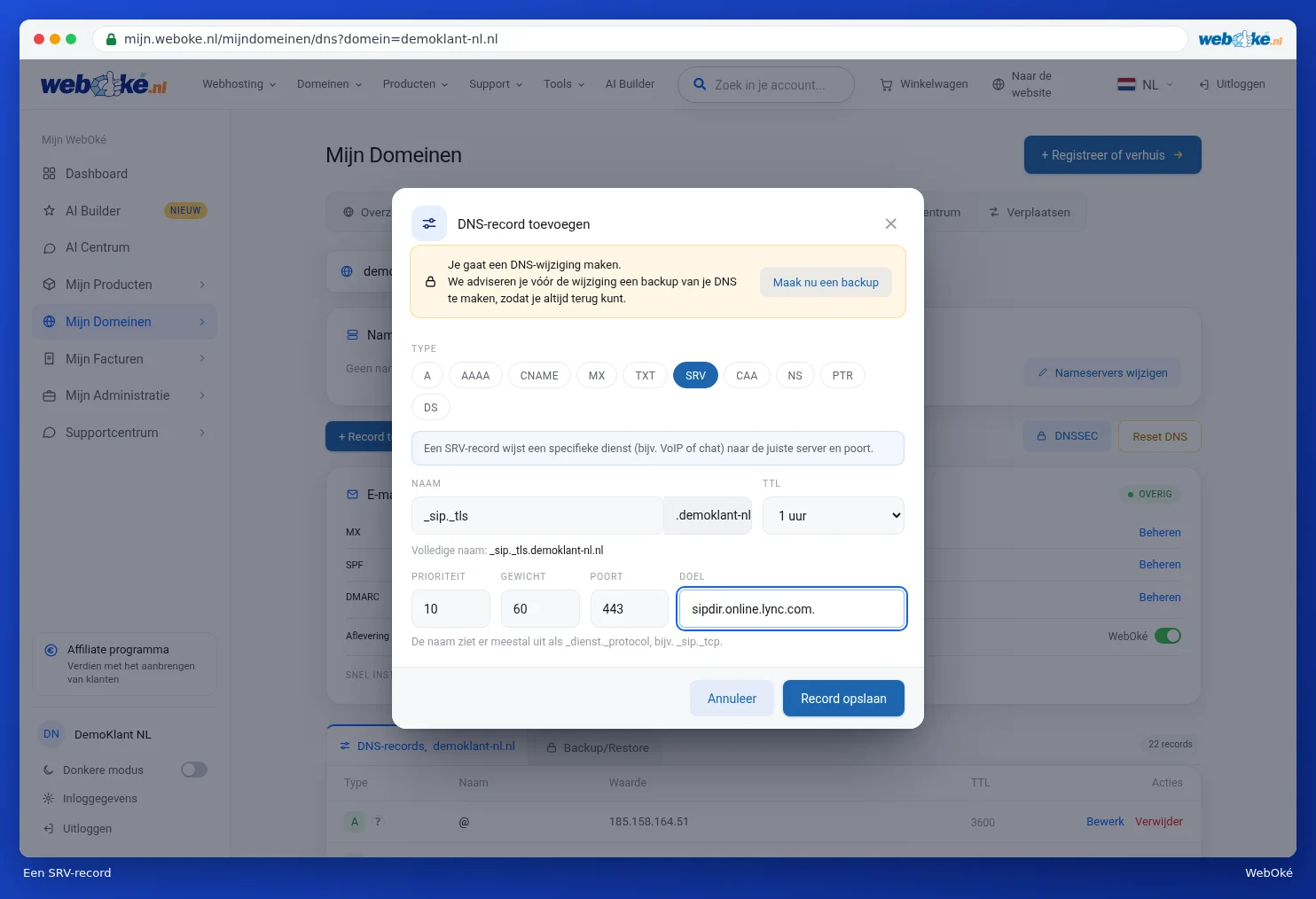
- Name: usually in the form _service._protocol, for example _sip._tls.
- Priority and Weight: which server is used first if there are several. Leave these as they are unless your provider says otherwise.
- Port: the port of the service.
- Destination: the server, with a dot at the end.
For each type, click Save record once everything is correct, or Cancel to leave everything unchanged.