
Chapter 9 · 9.1
Your Nextcloud package in My WebOké
With a Nextcloud package from WebOké, you have your own online storage, calendar, contacts and collaboration on European servers. In My WebOké, you handle the business side: your package, your users, your Office licences, extra storage and your own domain. For how to use Nextcloud itself (files, sharing, calendar, the apps), see the Nextcloud manual.
Opening your package
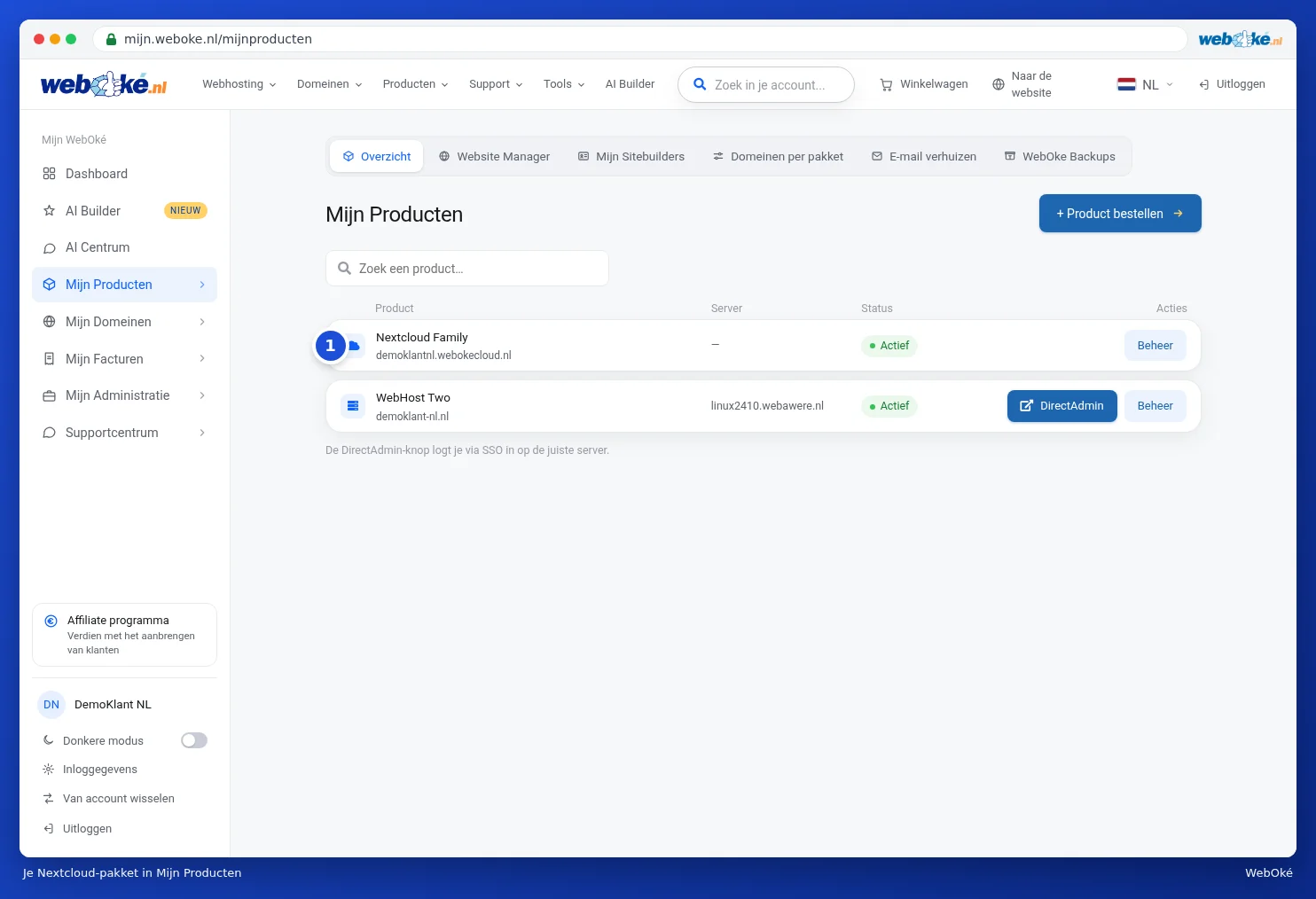
- Click My Products in the menu on the left. You can recognise your Nextcloud package by the cloud icon (1).
- Click the package or Admin. The product page opens.
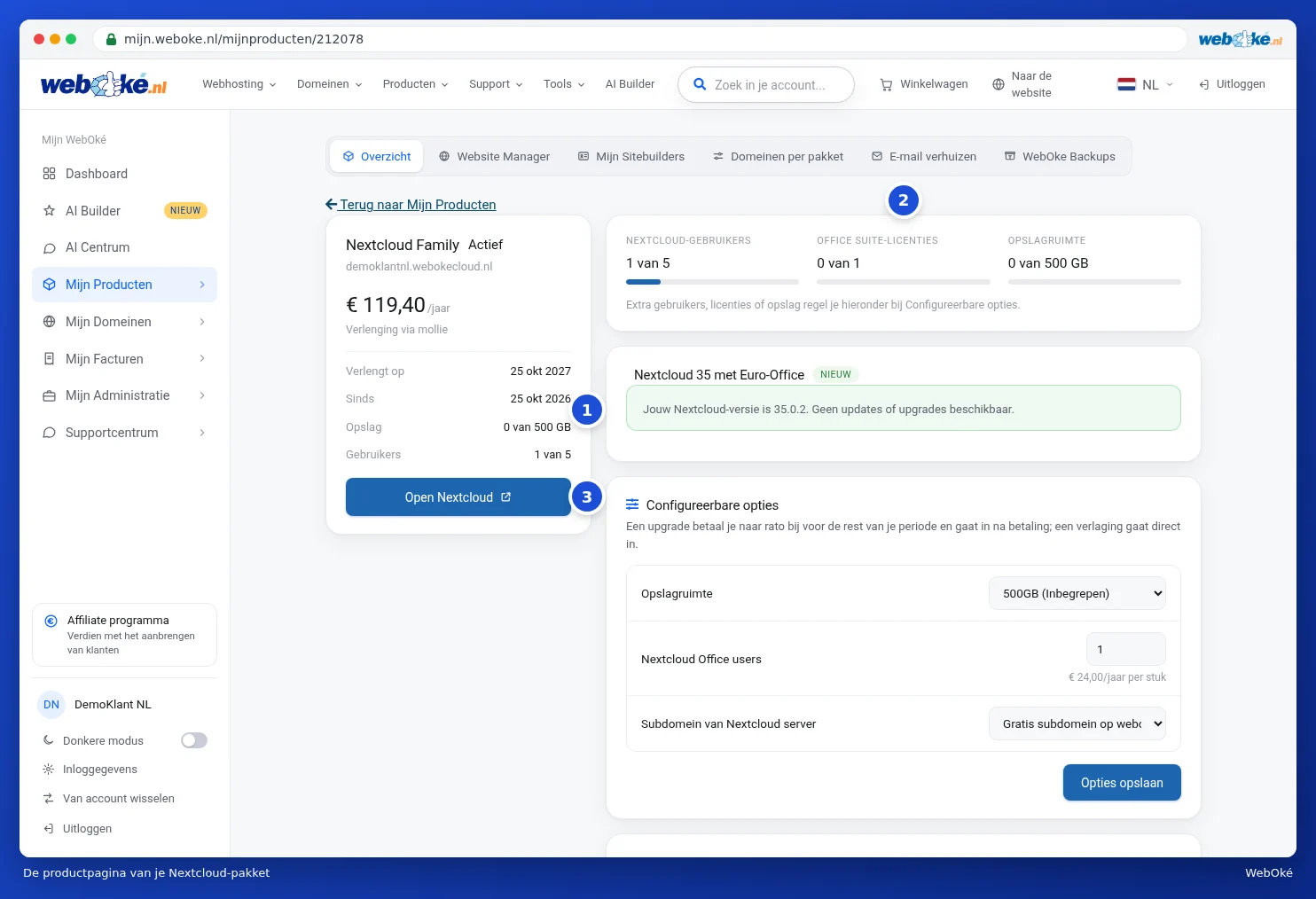
On the left, you see your package details (1): the name, the status, your Nextcloud's address, when the package renews, and since when you have had it. For a paid package, you also see how much Storage and how many Users you are using there. At the top right are the counters (2). Click Open Nextcloud (3) to go to your own Nextcloud. It opens in a new tab.
A Nextcloud package does not have a DirectAdmin button. You handle everything on this product page or in Nextcloud itself.
What's on the product page?
For a paid package, you see these cards on the right, from top to bottom:
| Card | What do you manage there? |
|---|---|
| The counters | Nextcloud users, Office Suite licences and Storage space: how much you are using of what you have. |
| Nextcloud version | Which version you have, and an update if one is ready. If there is nothing to do, it says no updates are available. |
| Configurable options | Extra users, Office licences and storage. See Managing users and Office licences. |
| Change hosting package | Switching to a larger or smaller Nextcloud package. |
| User management | Adding, changing and deleting users. See Managing users and Office licences. |
| Use your own domain | Setting up your Nextcloud on your own address. See A custom domain for your Nextcloud. |
| AI Assistant in Nextcloud | Turning on Nextcloud's AI assistant with your own key (from Nextcloud Family onwards). |
| Connect your own AI | Deciding what an AI tool used by your users may do in this Nextcloud (Family and Max). |
Sometimes a tip for a product that fits well with your package, such as Email Only, is also shown between the cards.

Below that are the cards for cancelling or transferring your package. You can read how this works in Cancelling, undoing cancellation, or transferring a product.
A different package or more storage
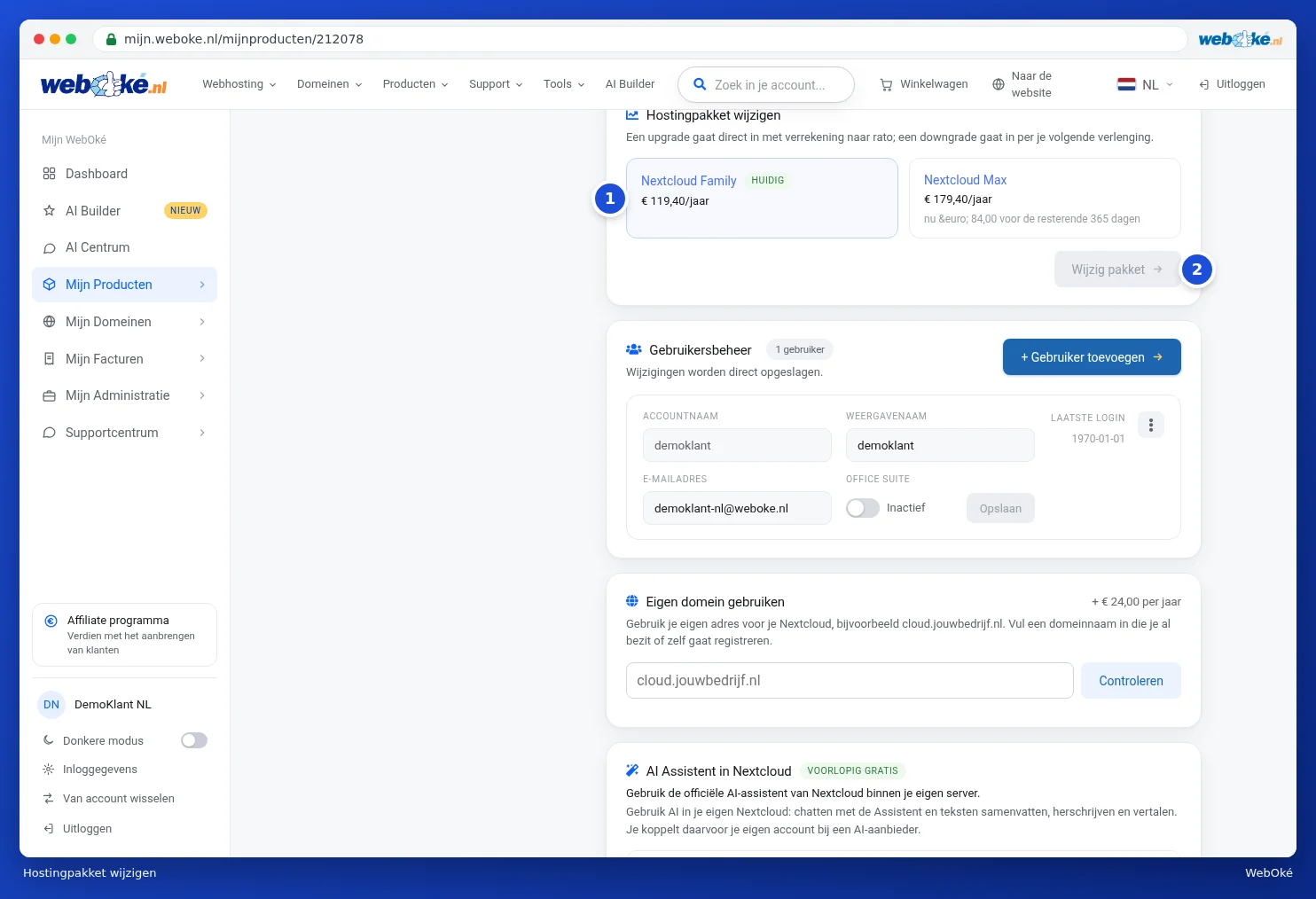
Under Change hosting package, you see your current package, labelled CURRENT (1), and the other packages. Each tile shows what you would pay extra for the rest of your period. An upgrade takes effect immediately, with a pro rata adjustment. A downgrade takes effect at your next renewal. First click the package you want, then click Change package (2). You cannot click the button until you have chosen a different package.
You arrange more storage under Configurable options. After the change, all users automatically get the new storage space. See Managing users and Office licences.
Nextcloud Free
If you have Nextcloud Free, you have one account of your own on our shared Nextcloud. You then see the card Your Nextcloud Free account with your username, name, email, how much storage you are using (Free has 5 GB), when you last logged in, and the Nextcloud version. You log in on the shared Nextcloud, using your username.
Need more storage, extra users or Office? That is possible with a paid Nextcloud package. See Ordering something extra when you're already a customer.
Please note: the Delete my account from Nextcloud Free button deletes your user, along with all files, and ends the package. You need to type your username to confirm. This cannot be undone, and there is no backup of your files. If you want to keep your files, copy them to another Nextcloud account first. See Transferring data between Nextcloud accounts.
Nextcloud's AI assistant
From Nextcloud Family onwards, you can use Nextcloud's official AI assistant within your own server. On the AI Assistant in Nextcloud card, choose an AI provider (1) and enter your own API key (2). Click Check and turn on. You pay the AI provider yourself per use. A subscription such as ChatGPT Plus or Claude Pro does not work here: you need an API key. Under Where do I get an API key? you'll find out where to get one. Once the AI is on, you can also choose the Model here, or turn it off again with Turn off AI. Only the account owner can start this update.

If you have Nextcloud Personal, you also see the card, along with a message that this is available from Nextcloud Family onwards.
Connect your own AI
With Nextcloud Family and Max, the product page also shows the Connect your own AI card. There, you decide what an AI tool used by your users may do, at most, in this Nextcloud. For each component, such as Files, Calendar, Contacts and Notes, you switch Allow reading and Allow writing on or off. Then click Save. Switch off turns off connecting for the whole package. Under Connected AIs, you see which AI tools are connected. For how to connect an AI tool yourself, see MCP server: connecting your own AI to your package.
