
Chapter 11 · 11.2
Managing contacts (and cleaning up duplicates)
Watch it in a short video
Contacts are the people and companies you use as the owner or contact person for your domains. You can also decide which emails from us a contact receives. You'll find them under My Administration on the Contacts tab.

The overview
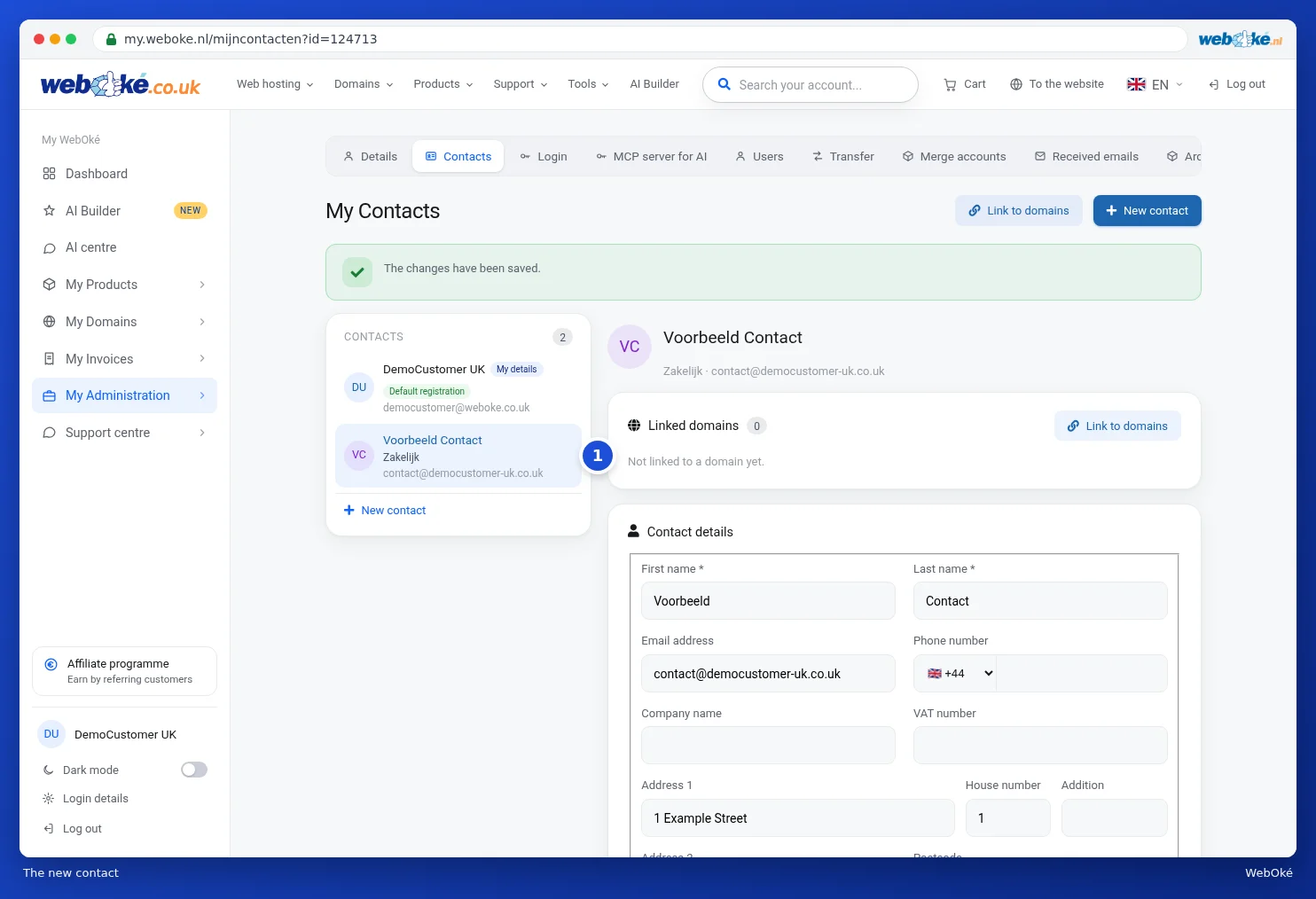
- On the left is the list of your contacts (3). Click a contact to open it on the right.
- The contact labelled My details is your main contact. This is linked to your account details. You edit it under My details with the Edit contact button (4), not here. You can't delete your main contact.
- The Default registration label shows which contact we use as the owner for new domain registrations.
- For each contact, you can see which domains it's linked to under Linked domains.
Adding a contact
- Click New contact (1).
- Fill in the contact details. First name and surname are required (1). Under Description (2), enter a short name, such as Business or Personal. You'll see this in drop-down lists.
- Tick Default contact for new domain registrations (3) if new domains should get this contact as the owner.
- Under E-mail preferences, choose which emails this contact receives from us (4): general emails, billing emails, support emails, product emails and domain emails. Handy if, for example, your accountant needs to receive the invoices.
- Click Add contact (5).

The new contact then appears in the list (1). You can link it to a domain straight away with Link to domains (2 in the overview). You can read how to change the owner of a domain in Domain contacts and changing the owner.
Editing or deleting a contact
Open the contact, adjust the details and click Save changes. If the contact is linked to domains, your changes will also apply to those domains.
To delete a contact, use Delete contact at the bottom. You'll first be asked to confirm. Click Delete contact (1) to confirm, or Cancel to go back.
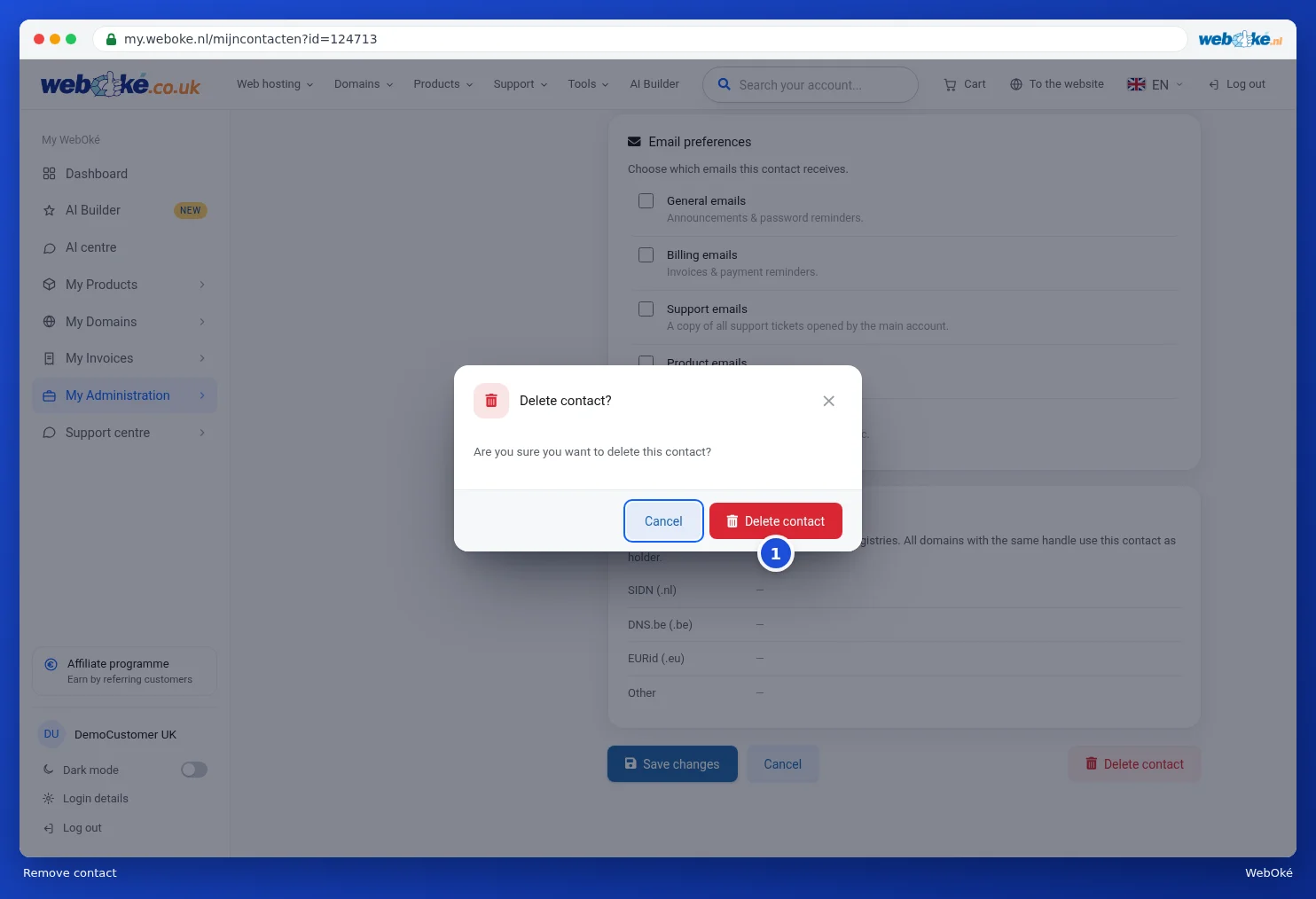
Please note: you can't delete a contact that's still linked to a domain. The window will list the domains in that case. Link a different contact to those domains first.
Cleaning up duplicate contacts
Have you created the same contact a few times over the years? Go to my.weboke.nl/ontdubbelen. We'll look for contacts that are exactly the same and show them in groups. One contact remains per group; the duplicates you tick will disappear when you click Merge selected. Your main contact always remains. Contacts still linked to a domain aren't simply deleted; we handle those separately.

If there are no duplicate contacts, you'll see this straight away, with a button to go back to your contacts.