
Chapter 5 · 5.3
Edit nameservers
Watch it in a short video
Nameservers tell the rest of the internet where your domain's DNS data is. At WebOké, these are by default ns1.webawere.nl and ns2.webawere.nl. You then manage the DNS simply in My WebOké, as described in Managing DNS: adding, editing and deleting records. If you want another party to manage the DNS, you enter their nameservers here.
Please note: if you choose nameservers from another party, the DNS at that party determines where your website and email go. Changes on the DNS tab in My WebOké then no longer have any effect. So make sure to set up all records at the new party first.
The Name servers card on the domain page
Open your domain's domain page (see The domain page: everything about one domain) and scroll to the Name servers card.
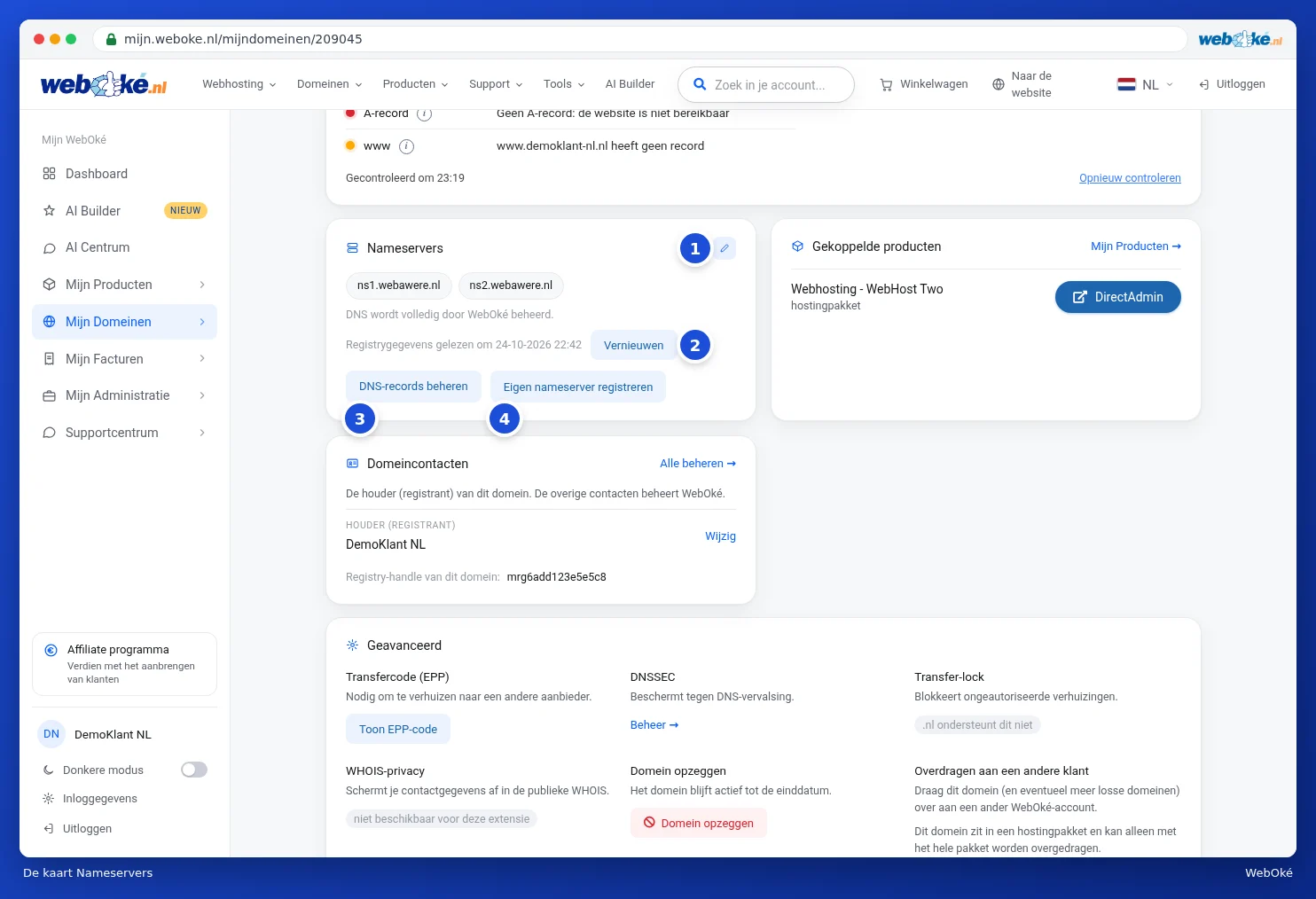
- Use the pencil icon (1) to edit the nameservers.
- Use Refresh (2) to retrieve the data again from the registry. Above it, you can see when this last happened.
- Manage DNS records (3) takes you to the DNS tab for this domain.
- Register your own nameserver (4) is only for when you want to create your own nameservers under this domain. See below.
How to edit the nameservers
- Click the pencil icon in the Name servers card. The Edit nameservers window opens.
- Enter at least two nameservers in ns1 and ns2. The ns3 through ns5 fields are optional.
- Click Save nameservers.

Want to go back to WebOké's nameservers? Click Default nameservers in the same window, then click Save nameservers.
A change can take up to 24 hours to become active everywhere on the internet. During that time, some visitors may already see the new situation while others still see the old one.
You can also change the nameservers using the Edit nameservers button at the top of the DNS tab, or for multiple domains at once via the overview (see Your domain overview).
Tip: you can only change nameservers for a domain that is registered and active at WebOké. If your domain is still with another provider, change the nameservers there.
Registering your own nameserver
Do you want nameservers with your own domain name, such as ns1.yourdomain.com? Then the registry needs to know which IP address that nameserver runs on. This is called a glue record.
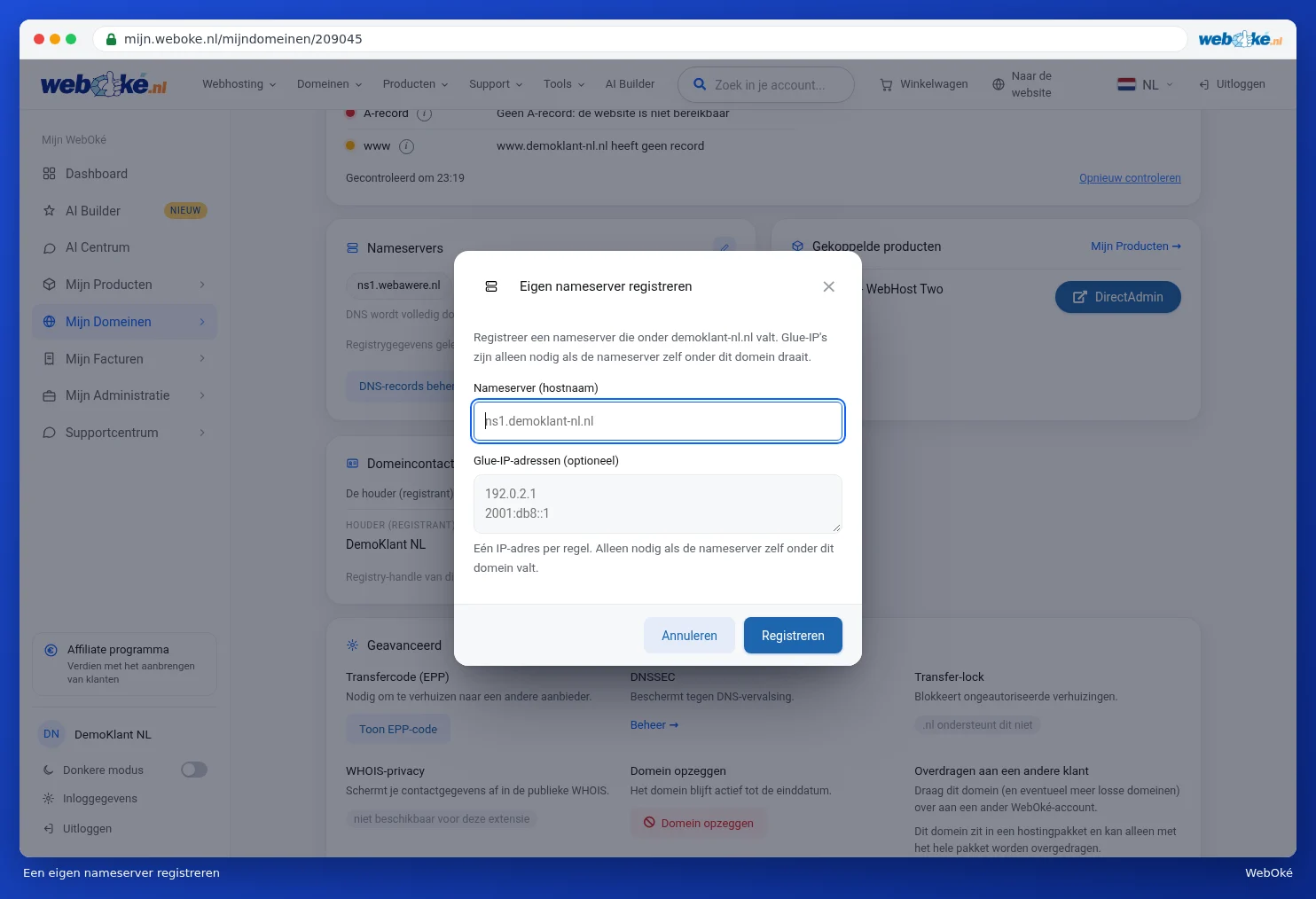
- Click Register your own nameserver.
- Enter the name in Nameserver (hostname), for example ns1 followed by your domain name.
- Enter the IP addresses in Glue IP addresses (optional), one per line. These are only needed if the nameserver itself falls under this domain.
- Click Register.
This is for advanced users who run their own DNS server. If you simply use WebOké's DNS, you won't need this.