
Chapter 9 · 9.1
Calendar: views, making appointments, repeating and reminders
Watch it in a short video
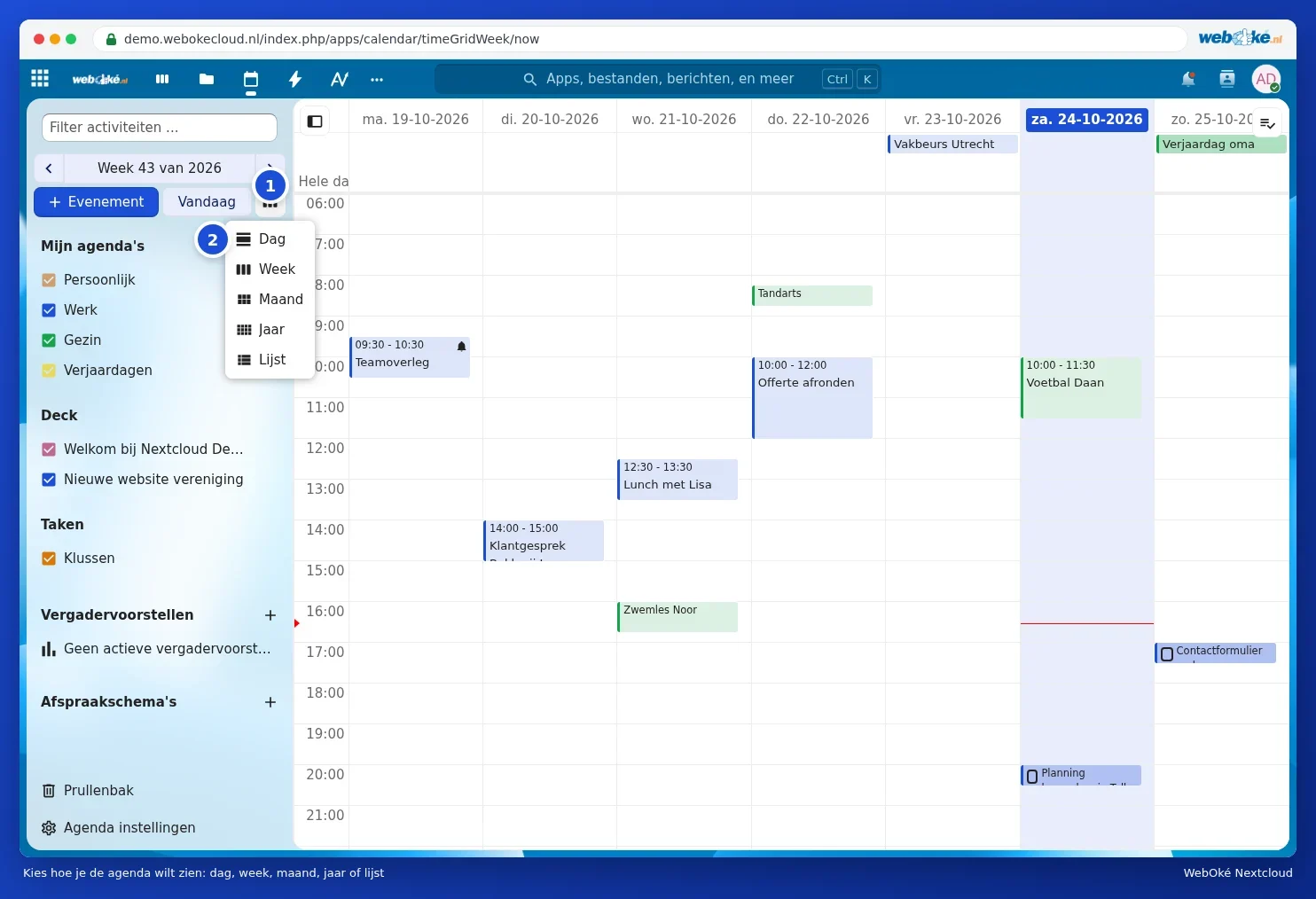
With the Calendar app, you keep track of your appointments in your WebOké Nextcloud. You can use several calendars side by side, for example one for work and one for your family, share them with others and see them on your phone. Open the Calendar with the calendar icon in the bar at the top.

| No | Part | What do you use it for? |
|---|---|---|
| 1 | Event | Create a new appointment. |
| 2 | Today | Back to today. Use the arrows above it to browse to the previous or next week; click the date in between to pick a day. |
| 3 | View | Choose between Day, Week, Month, Year and List. |
| 4 | My calendars | Your calendars. Use the checkbox to show or hide a calendar; each calendar has its own colour. |
| 5 | Trash bin | Restore deleted appointments and calendars. |
| 6 | Calendar settings | Time zone, importing, the addresses for your phone and more. |
Below your own calendars, you'll also see the boards from Deck (cards with a due date) and your to-do lists from Tasks. Nextcloud creates the Birthdays calendar itself, using the birthdays from your contacts.
Choosing a different view
Click the button next to Today (1) and choose the view (2). The List shows all appointments one below the other, handy for a quick look ahead.

Creating an appointment
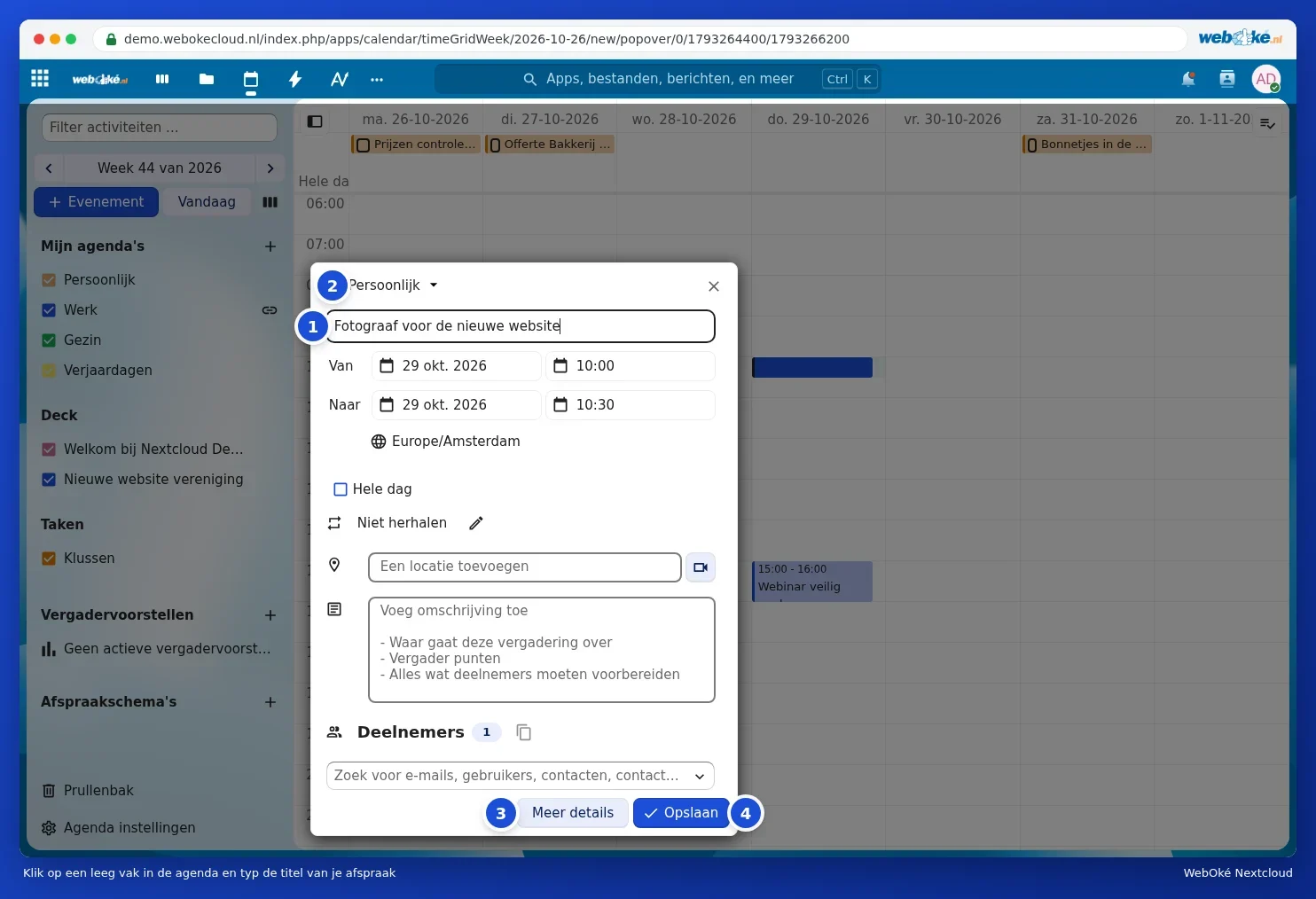
- In the week or day view, click an empty slot at the right time, or drag across several slots for a longer appointment. You can also click Event.
- Type the title of the appointment (1).
- At the top, choose which calendar the appointment goes in (2), for example Work or Family.
- Check the date and time next to From and To. Tick All day for a birthday or a day off.
- If you like, add a location and a description.
- Click Save (4). Want to set more options, such as a reminder? Click More details (3).
Tip: next to the location field is a button with a camera. In packages with Office, this adds a Talk conversation to the appointment directly, so everyone can join online (see Starting a conversation: one-to-one, group or team).
All the options: More details
Under More details, you see the appointment in a large window. Here you can set:
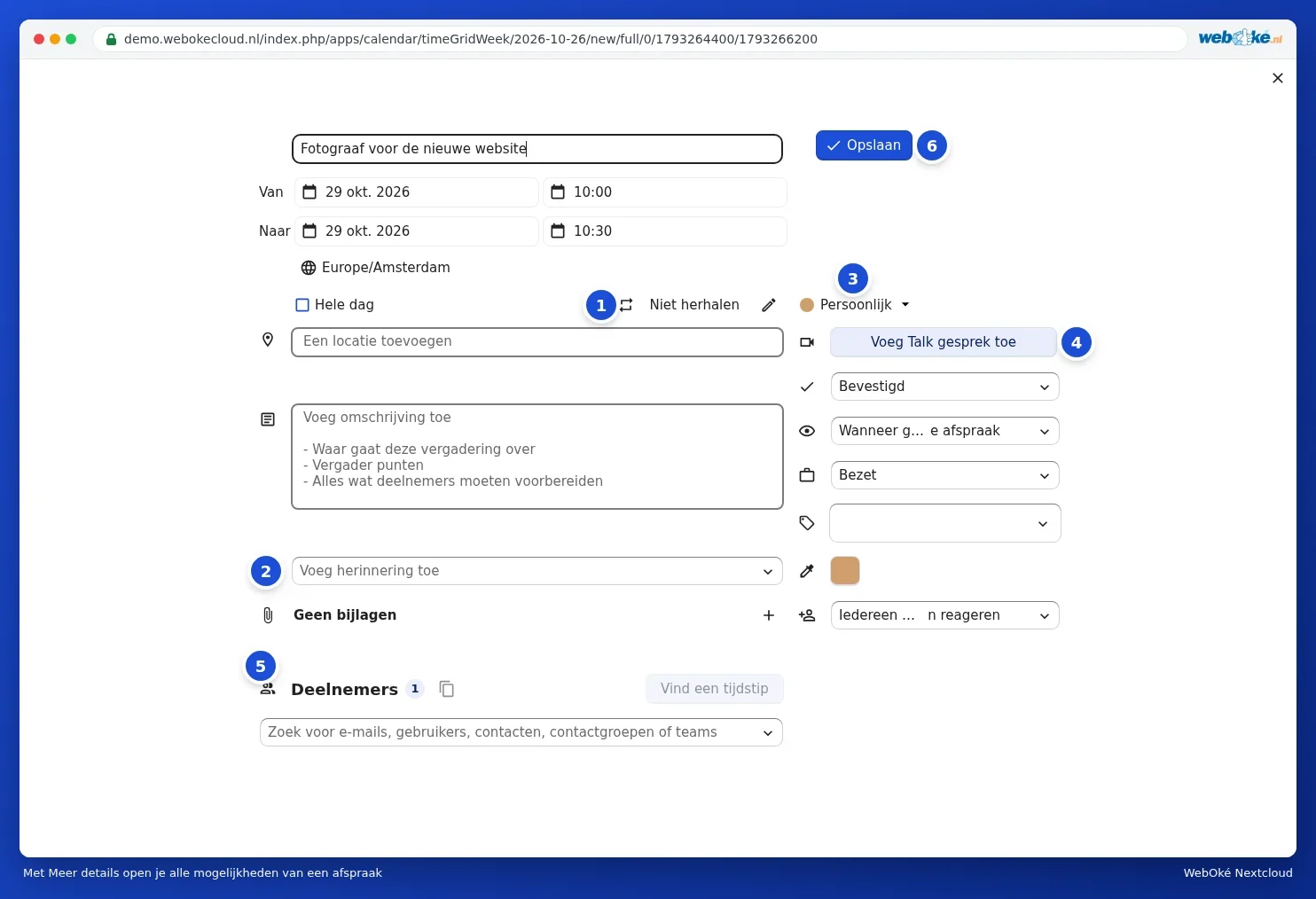
- Repeat (1): click the pencil next to Does not repeat.
- Reminder (2): under Add reminder, choose when you want to be notified.
- Calendar (3): which calendar the appointment is in. If you change it, the appointment moves.
- Talk conversation (4): link an online meeting (packages with Office).
- Attendees (5): invite people, see Inviting people to an appointment.
- On the right, you'll also find: the status (for example Confirmed), what others see if you share the calendar, whether the time counts as Busy or Free, tags, a custom colour and who may respond to the invitation.
- Below the reminder on the left, add attachments with the plus next to No attachments.
Click Save (6). For an existing appointment, this button is called Update.
Making an appointment repeat
In More details, click the pencil next to Does not repeat. The Repeat event window opens. In the drop-down list, choose how often (every day, week, month or year), then on which days and when the repetition ends. Click Set repetition.
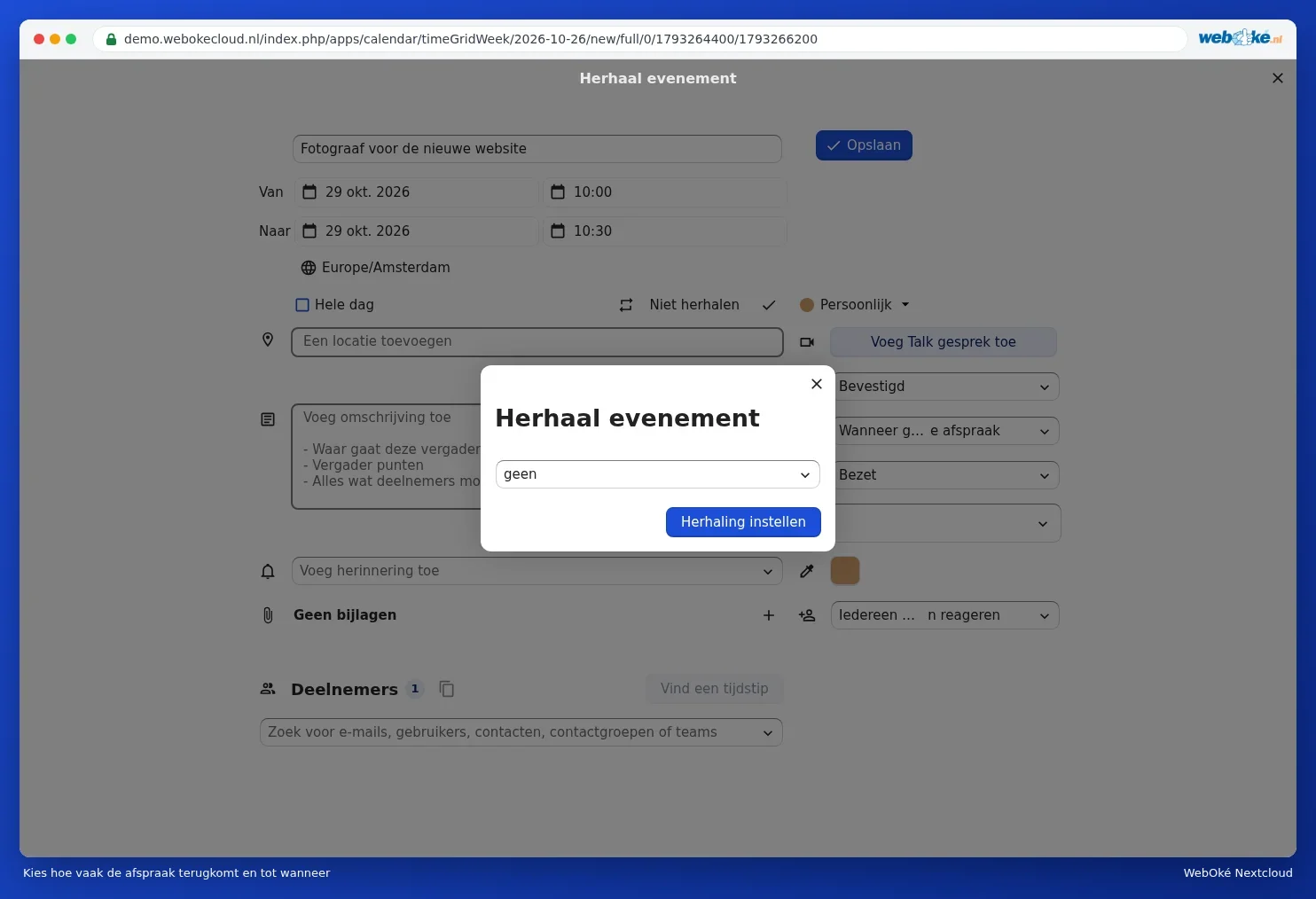
If you later change one appointment in a series, the Calendar asks whether you want to change just this appointment or all the following ones too.
Reminders
In More details, click Add reminder and choose, for example, 15 minutes or 1 day in advance. You can add several reminders. You'll get the reminder as a notification in your Nextcloud, and on your phone if you've linked the calendar there (see Calendar and contacts on the iPhone and iPad and Calendar and contacts on Android with DAVx5).

Tip: want a reminder automatically on every new appointment in a calendar? Set a default reminder on the calendar itself: hover over the calendar, click the pencil and choose under Default reminder for part-day events (see Sharing, publishing and embedding calendars in your website).
Viewing, changing, moving or deleting an appointment
- Viewing: click the appointment. You'll see the time, place and description, with the More details and Edit buttons.
- Moving: drag the appointment to a different time or day. Drag the bottom edge to make it longer or shorter.
- Deleting: click the appointment, open the menu with the three dots and choose delete.

Accidentally deleted?
Click Trash bin at the bottom left. This holds deleted appointments and calendars. Click Restore to bring them back. After a while, they disappear from the trash bin; the window shows after how many days.
Is the time wrong?
Are appointments shifted by an hour or more? Check Calendar settings to see which Time zone is set. Choose Amsterdam (or the time zone where you live). See also Filling in your profile: name, photo, email address, language and time zone for the language and time zone of your account.