
Chapter 9 · 9.3
Sharing, publishing and embedding calendars in your website
You can share a calendar with people in your WebOké Nextcloud, for example the family calendar with your partner or the team calendar with your colleagues. You can also make a calendar public with a link, so that anyone can view it, or embed it in your website.
Opening the Edit calendar window
In the My calendars list, hover your mouse over the calendar and click the pencil (1).

Does the calendar already have a public link? Then you'll see a button with three dots instead of the pencil. This opens a menu with Copy public link (1) and Edit and share calendar (2).

You'll now see the Edit calendar window. At the top, you can change the name and colour, and the default reminders for new events. With Show me always as unavailable, events in this calendar won't count when someone checks when you're free, handy for example for a calendar with birthdays or school holidays.
Sharing with someone in your Nextcloud
- Under Share calendar, type the name of a colleague, a group or a team in the Share with users or groups field (1).
- Click the correct name. The calendar is shared immediately and the person appears in the list (3).
- Can the other person also add and change events? Then tick can edit (4). Without the tick, the other person can only view.
- Click Save (5) if you've also changed the name or colour.

The other person then sees the calendar in their own list of calendars, with your name next to it, and also on their phone if it's linked. To stop sharing, use the trash bin icon next to the name.
Tip: are you sharing a calendar with someone who should only see when you're busy, but not why? Then set the sharing option for each event in More details to When shared show as unavailable, or to When shared hide this event.
Creating a public link
With a public link, anyone who has the link can view your calendar, without an account and without logging in. Changes aren't possible.
- In the Edit calendar window, click the plus next to Share link (2). The link is created immediately.
- Click the copy button to copy the public link, or open the menu with the three dots next to it.
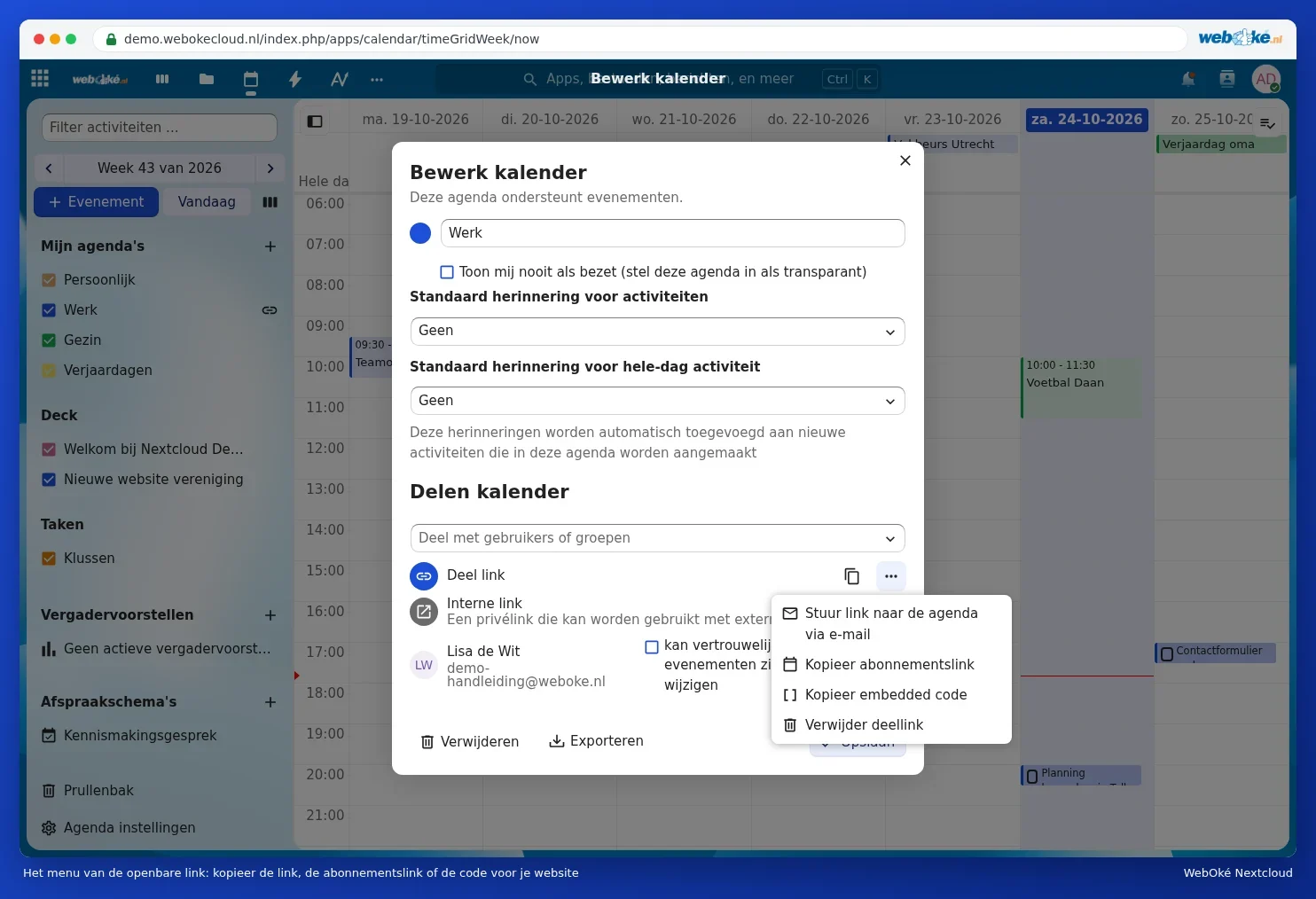
| Option in the menu | What it's for |
|---|---|
| Copy button (or Copy public link in the My calendars list) | A web page with your calendar, to send around. |
| Send link to calendar via email | Emails the public link to someone straight away. |
| Copy subscription link | A link that others can add to their own calendar app (Outlook, Google Calendar, iPhone). They then see your events in their own calendar, read only. See Subscribing to an external calendar and importing a calendar. |
| Copy embedding code | A piece of code to embed the calendar in your website. See Putting a public calendar or booking page on your website. |

You can remove a public link in the same menu with Delete share link. After that, the link, the subscriptions and the calendar on your website will stop working.
Please note: a public link shows all events in that calendar, with title, location and description. For public events, it's better to create a separate calendar.
The internal link
Below the public link is the Internal link: a private link to this calendar for programmes that connect to your Nextcloud. This only works with your username and an app password. Usually you won't need it: phones and programmes find your calendars automatically (see Calendar and contacts on the iPhone and iPad to Calendar in Outlook with CalDav Synchronizer).
Exporting and deleting
At the bottom of the Edit calendar window are Export (download all events as an .ics file, for example as a backup) and Delete. A deleted calendar stays in the Calendar's Trash bin for a while.