
Chapter 13 · 13.7
From Nextcloud Free to a paid package, or from another Nextcloud provider
Do you have Nextcloud Free and want more space, more users or Office? Or do you already have a Nextcloud with another provider? This article explains how to take your data with you.
From Free to Personal, Family or Max
Nextcloud Free is an account on our shared Nextcloud. A paid package is your own Nextcloud. You can't convert Free, so you order a new package and move your data over. For this, WebOké has the Nextcloud Export page.
Nextcloud Export
Nextcloud Export copies contacts, calendars and files from one Nextcloud account to another. This only works if both Nextclouds are with WebOké, for example from Free to your new package, or from one package to another. You'll find the page at mijn.weboke.nl/nextcloudexport. You need to be logged in to Mijn WebOké.
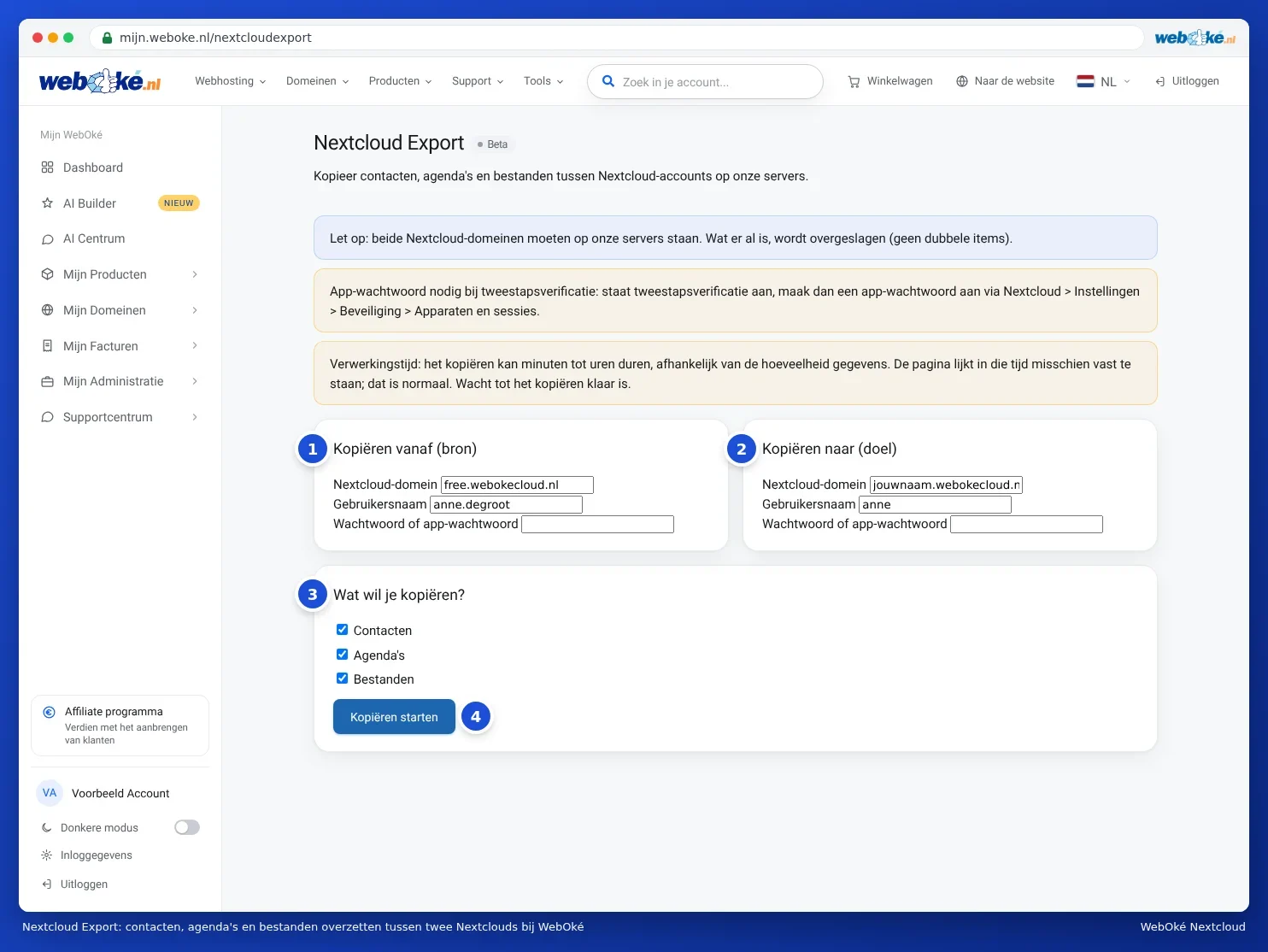
- Create an app password in the Nextcloud you're coming from, and also in your new Nextcloud. Two-factor authentication is always on, so your regular password won't work here. See App passwords: when and how to use them.
- Go to mijn.weboke.nl/nextcloudexport.
- Under Kopiëren vanaf (bron) (1), enter the address of your old Nextcloud, your username and the app password. For Free, the address is free.webokecloud.nl.
- Under Kopiëren naar (doel) (2), enter the address of your new Nextcloud, your username there and the app password.
- Under Wat wil je kopiëren? (3), choose: Contacts, Calendars and Files.
- Click Kopiëren starten (4).
Copying can take anywhere from minutes to hours. The page may appear to be frozen during this time. That's normal: don't close it, and wait until you see the message Kopiëren gelukt!, showing how many contacts, calendar items and megabytes of files were copied.
Good to know
- No duplicates are created. Anything already on the destination is skipped. Did the copying fail halfway through? Just start it again.
- Everything ends up in one calendar and one address book. If your old Nextcloud has multiple calendars, all appointments will end up in your first calendar on the destination afterwards. The same applies to address books. Want to keep them separate? Export and import them per calendar instead (Moving your calendar and contacts from Google, iCloud or Outlook (ics and vCard)).
- Files end up in the same folders as in your old Nextcloud.
- Shares don't come along. You'll need to recreate shared folders and public links in your new Nextcloud.
- Nextcloud Export is still in Beta. If it doesn't work, please contact support.
Afterwards: cleaning up your Free account
Is everything in your new Nextcloud? Then you can delete your Free account. In Mijn WebOké, go to Mijn Producten, click Administration next to Nextcloud Free and click Verwijder mijn account uit Nextcloud Free. Type your username to confirm.
Please note: this deletes your account with all files immediately and permanently. There's no backup. So make sure everything has transferred correctly first.
From a Nextcloud with another provider
Nextcloud Export only works between Nextclouds hosted with WebOké. Otherwise you'll get the message Het brondomein staat niet op onze servers. If you're coming from another provider, here's how to do it:
- Files: install the Nextcloud desktop app and add both your old and your new Nextcloud as an account (Multiple accounts and folders in one app). Then copy the files from your old Nextcloud's folder to your new one's folder in File Explorer or Finder. For small amounts, you can also download them as a zip file in your browser and upload them again (Uploading and downloading, including large files, whole folders and zip).
- Calendars and contacts: export them in your old Nextcloud as ics and vCard files and import them into your new one (Moving your calendar and contacts from Google, iCloud or Outlook (ics and vCard)).
- Can't figure it out, or is it a large number of users? Contact support, we're happy to help.