
Chapter 14 · 14.2
Creating, editing, disabling and deleting users
With Nextcloud Family and Max you give everyone their own account: your family members, your colleagues or the members of your association. Everyone has their own files, their own calendar and their own contacts, and you can easily share with each other. You manage users in Mijn WebOké, under Gebruikersbeheer on the package page (see The package page in My WebOké).
How many users can you create?
| Package | Users |
|---|---|
| Personal | 1. In User management you can still manage the password and details of that user. |
| Family | 5, fixed. You can't order extra users with Family. If you need more, switch to Max. |
| Max | 10, expandable with Extra Nextcloud accounts under Configurable options, up to 100 in total. |

For each user you see the Account name (the username), the Display Name, the Email address, the Office Suite switch and the date of the Last login. For someone who has never logged in, it says Not logged in yet.
Adding a user
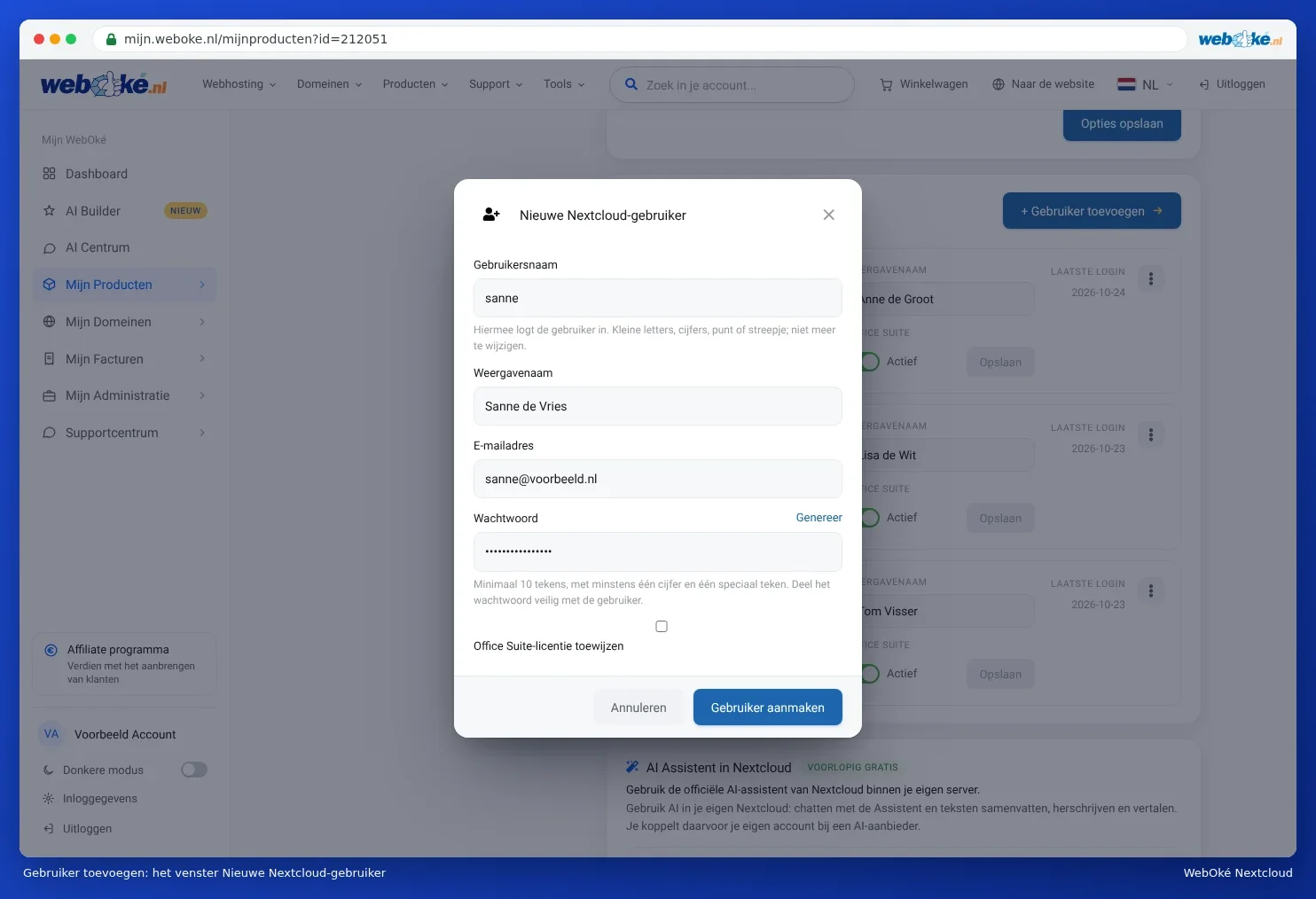
- Click Add user (1) in User management.
- Fill in the Username. The user logs in with this. Use lowercase letters, numbers, a full stop or a hyphen. You can't change the username later.
- Fill in the Display Name. Others see this name when you share something.
- Fill in the Email address. This is where Nextcloud's emails go, such as the login code and a link to create a new password.
- Choose a Password of at least 10 characters, with at least one number and one special character. Or click Generate.
- Does the user need to work with Euro-Office? Then tick Assign Office Suite licence.
- Click Create user.
Please note: we don't send the new user a welcome email. Pass on the address of your Nextcloud, the username and the password yourself, and do so securely: for example, send the password via a different channel than the username. The first time they log in, Nextcloud asks for a code sent by email. See Logging in for the first time.
Notifications you might see
| Notification | What to do |
|---|---|
| This username already exists on the installation. | Choose a different username. |
| Choose a username of 2 to 64 characters: lowercase letters, numbers, full stop, hyphen or underscore. | Remove capital letters, spaces and other characters from the username. |
| Nextcloud rejected this password. | The password is too short, too common, or appears in a list of leaked passwords. Click Generate or choose a longer password. |
| You've reached the maximum of ... users. | Increase the number under Configurable options (Max) or switch to a larger package. See More storage or users, changing or cancelling your package. |
| All ... Office Suite licences are in use. | Create the user without Office, or order more licences. See Assigning and ordering extra Office licences. |
Changing a name or email address
Edit the Display Name or Email address directly in the user's row and click Save in that row. The email address is important: this is where login codes and the email to create a new password are sent.
Turning Office on or off
Turn the Office Suite switch (2) on or off. This is saved immediately. See Assigning and ordering extra Office licences.
Password, disabling and deleting
Click the actions menu (3) next to a user. You can then choose:

- Change password: for example if someone has lost their password and doesn't receive a recovery email.
- Disable: the user can no longer log in, but all their files, appointments and contacts are kept. Use Enable to turn them back on.
- Delete: permanently delete the user and all their data.
Please note: with Delete, all of that user's files, calendars and contacts are permanently deleted. This can't be undone, not even by WebOké. Have the user transfer their files first. Read how to do this in Transferring ownership when a colleague leaves and Colleague leaving: safely taking over files, calendar and shared folders.
Someone is leaving
- First turn off Office Suite, so the licence immediately becomes available for someone else.
- Choose Disable. The user can then no longer log in, but nothing is lost.
- Make sure the files, calendars and shared folders end up with someone else (Colleague leaving: safely taking over files, calendar and shared folders).
- Only delete the user once you're sure everything is safe.
Tip: a user can change their own password in Nextcloud, and request a new password with Forgot password on the login screen. See Changing or forgetting your password.
This explanation is also available in our knowledge base article Nextcloud gebruikers aanmaken en beheren.