
Chapter 1 · 1.1
What is Nextcloud and what is a WebOké Nextcloud?
Nextcloud is an online workspace for your files, photos, calendar, contacts and more. You'll recognise the idea from Google Drive, Dropbox or OneDrive: your files are stored safely online and you can access them from any device. Nextcloud does that too, and much more. The difference: with a WebOké Nextcloud, your data is stored on a server in the Netherlands, not with a large American tech company.

Nextcloud: open source from Europe
Nextcloud is open source. That means anyone can view and check the source code. The software is made by the German company Nextcloud GmbH and thousands of volunteers around the world. Governments, universities, hospitals and businesses across Europe use Nextcloud. Because it's open source, you're never locked in: your data stays yours and you can always take it with you.
What is a WebOké Nextcloud?
With WebOké, you get Nextcloud ready to use. You don't have to install, update or secure anything yourself: we take care of that. You open your Nextcloud in your browser at your own address, for example yourname.webokecloud.nl, or on your own subdomain such as cloud.yourcompany.com.
- Your own server. With a Personal, Family or Max package, you get your own Nextcloud. Your files are not mixed in with those of other customers. Only Nextcloud Free is a shared Nextcloud: there you have your own account on a server you share with other Free users.
- In the Netherlands. Your data is stored in two Dutch data centres run by NorthC, in Aalsmeer and Oude Meer. These run on 100% green electricity and reuse their residual heat.
- Securely set up. Logging in uses an extra code by email by default, strict password rules apply, and anyone who tries a wrong password too often is slowed down. You can read all about that in How does WebOké secure your Nextcloud?.
- Kept up to date by us. WebOké keeps your Nextcloud up to date and makes backups (see Backups with WebOké: what we keep and what you can do yourself). When a new main version is released, the owner of the package chooses when to switch, with a single button in Mijn WebOké (Nextcloud updates: when and how).
- Help in your own language. If you run into something, we'll help you via a ticket or the AI assistant in Mijn WebOké, or via WhatsApp and email. With Nextcloud Free, there's no personal support; the knowledge base, this manual and the AI assistant in Mijn WebOké will help you further.
What can you do with it?
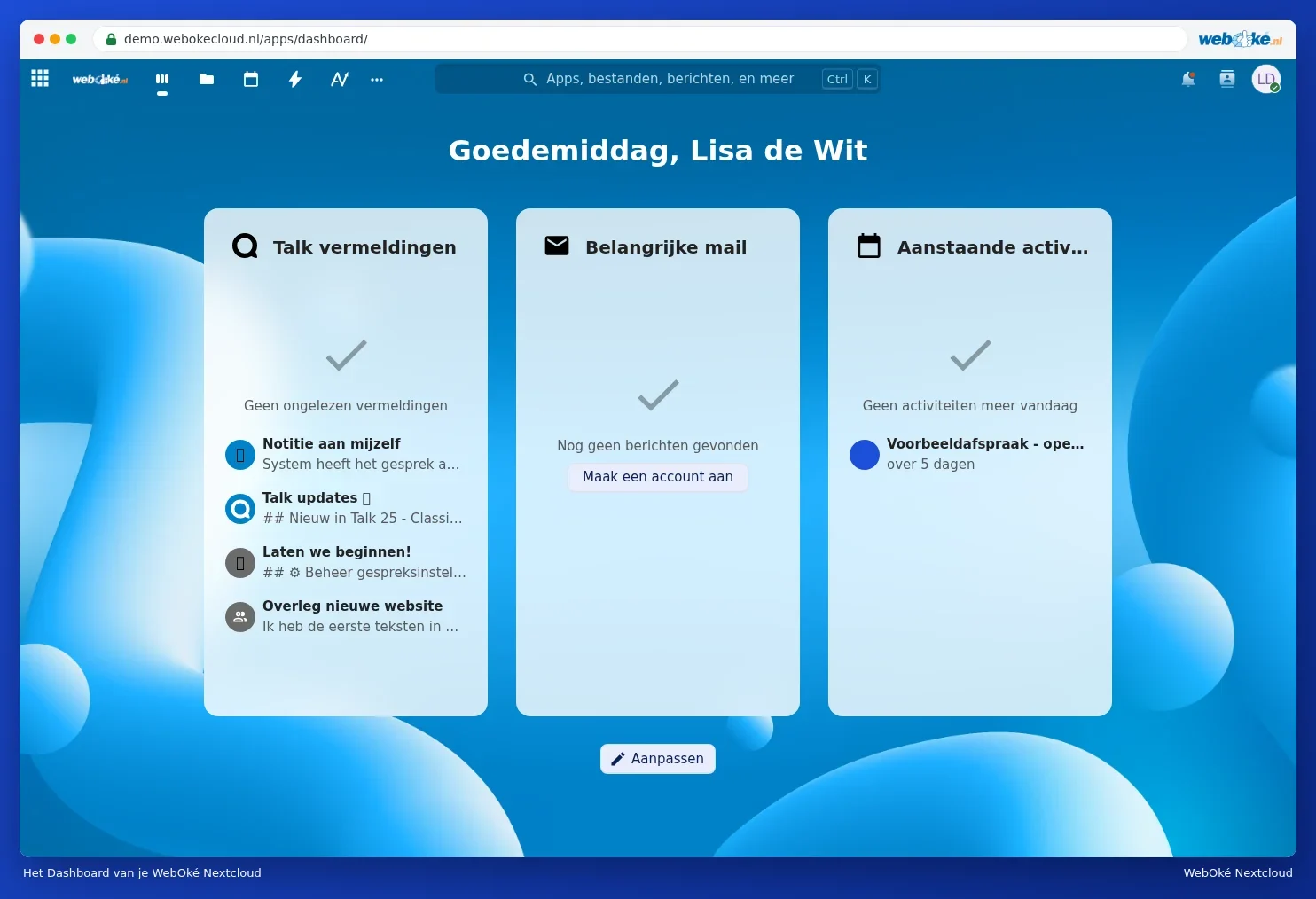
After logging in, you land on the Dashboard. There, you see at a glance what's happening today: your upcoming appointments, messages and notifications. From there, you open the apps. The most important ones:
| App | What you use it for | Comparable to |
|---|---|---|
| Files | Storing, sharing and syncing files and folders with your computer and phone | Google Drive, OneDrive, Dropbox |
| Photos and Memories | Viewing photos and videos, organising them into albums and sharing them | Google Photos, iCloud Photos |
| Calendar, Contacts and Tasks | Your calendar, address book and task lists, also on your phone | Google Calendar, Outlook calendar |
| Reading your existing mailboxes in your Nextcloud | Gmail, Outlook | |
| Notes and Deck | Quick notes and task boards with cards | OneNote, Trello |
| Euro-Office (with Office) | Editing Word, Excel and PowerPoint files in your browser | Microsoft 365, Google Docs |
| Talk (with Office) | Chatting, calling and video conferencing | Teams, Zoom, WhatsApp |
You can read exactly which apps are included in your package in Which apps are included in my package?. We explain editing documents with Euro-Office in a separate manual: the Euro-Office manual.
What does WebOké do and what do you do yourself?
| WebOké takes care of this | You do this yourself |
|---|---|
| The server, the installation and the updates of Nextcloud | Managing your files, folders, calendars and contacts |
| Security of the server and backups | Choosing a strong password and optionally setting up an authenticator app |
| The address of your Nextcloud and the certificate (the padlock in your browser) | Sharing with others and deciding what they're allowed to do |
| Help with questions and incidents | As an administrator: managing users and settings in Mijn WebOké |
Tip: New here? Start with Logging in for the first time and then Quick start: the five things to do on your first day. You'll have everything set up properly within a quarter of an hour.