
Chapter 2 · 2.2
Filling in your profile: name, photo, email address, language and time zone
A completed profile is handy for you and for the people you work with. They see your name and photo when you share something, and you receive notifications and login codes at the right email address. It only takes two minutes.
Going to your profile
- Click your profile picture or your initials in the top right corner.
- Choose Settings.
- You land directly on Profile & contact.

Your photo
Click Upload profile picture (1) and choose a photo from your computer. If the photo is already in your Nextcloud, choose Choose from Nextcloud Files. The photo must be a PNG or JPG file. You can crop it afterwards. Without a photo, Nextcloud shows your initials in a coloured circle.
Your name
Under Full name (2), enter your first and last name. Other people see this name when you share something with them or send them an appointment. Changes are saved immediately, you don't need to click Save anywhere.
Tip: You can't change your username, which you use to log in. You can change your full name, though.
Who sees what?
There's an icon next to each field (3). Use it to decide who can see that piece of information. Click the icon and choose, for example, only you, only the people in your Nextcloud, or also people on other Nextclouds you work with. Only fill in what you want to share. Location, date of birth, phone number and the social media fields are optional.
Your email address: important!
Scroll down to the Contact section. Under Primary email address (1) is the email address where you receive notifications, your login codes and emails for a new password. Check that it's correct and that you actually read that mailbox.
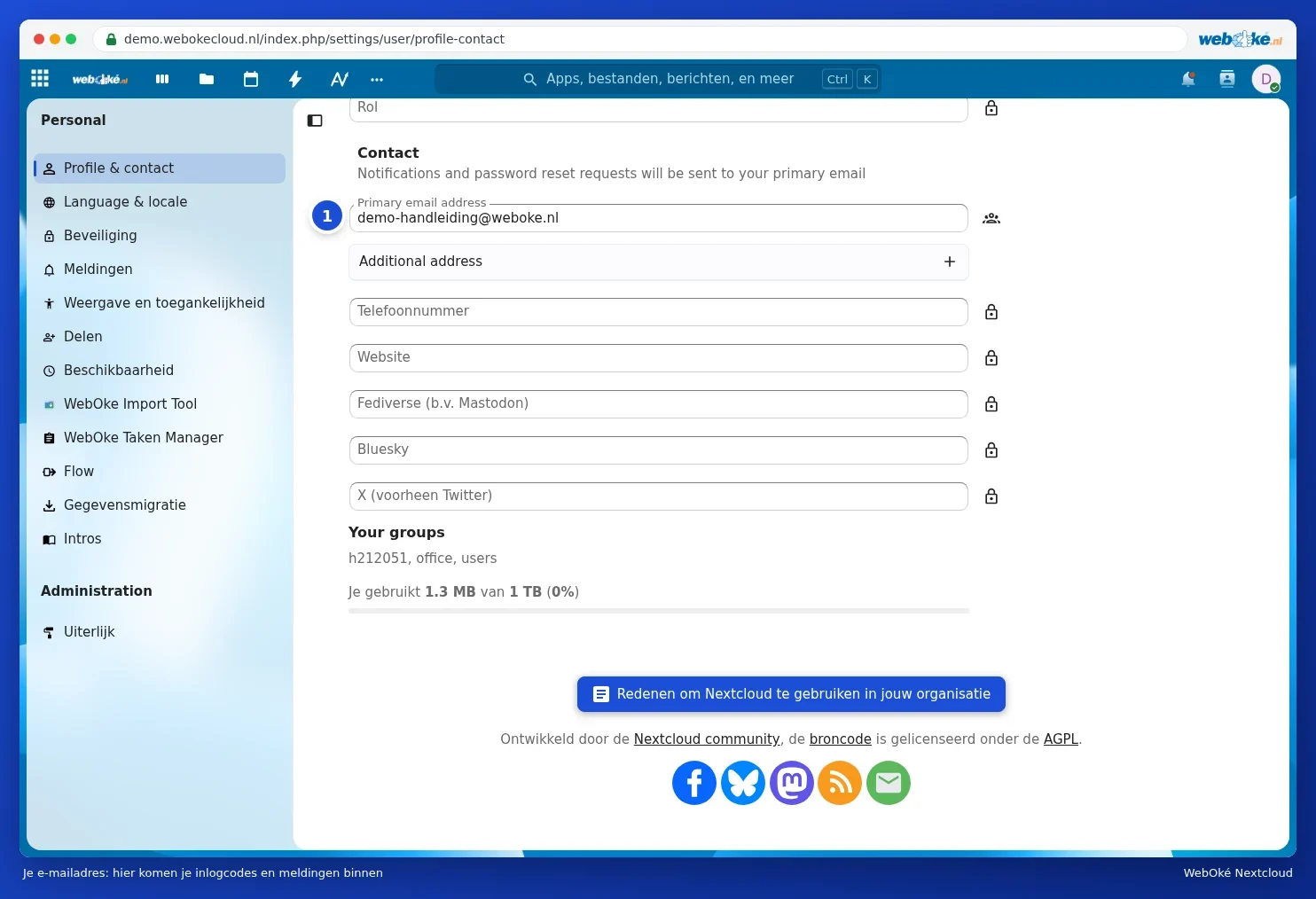
Please note: Your login code arrives at this address. If you change it to an address you can't read, you won't be able to log in next time. If you're unsure, leave it as it is or ask the administrator of your package.
At the bottom of this section, under Your groups, you can see which groups you're in, and how much storage you're using out of the total.
Language, locale and time zone
Click Language & locale on the left.

- Language: the language of all menus and buttons. Choose, for example, English, Deutsch or Français.
- Locale: determines how dates and times look. With English (United Kingdom), that's day-month-year with a 24-hour clock.
- First day of the week: for your calendar. In the United Kingdom, that's Monday.
- Time zone: the last field, for example London. If your time zone is wrong, your appointments will show at the wrong time.