
Chapter 3 · 3.6
Viewing, revoking, or remotely wiping devices and sessions
Watch it in a short video
Under Devices & sessions, you can see everywhere you're logged in with your account: in browsers, in the Nextcloud apps on your computer and phone, and with app passwords. This is also where you lock out a device, for example if your phone has been stolen.
Viewing the list
- Click your profile picture or initials in the top right.
- Choose Settings.
- Click Security on the left.
- Scroll to Devices & sessions.
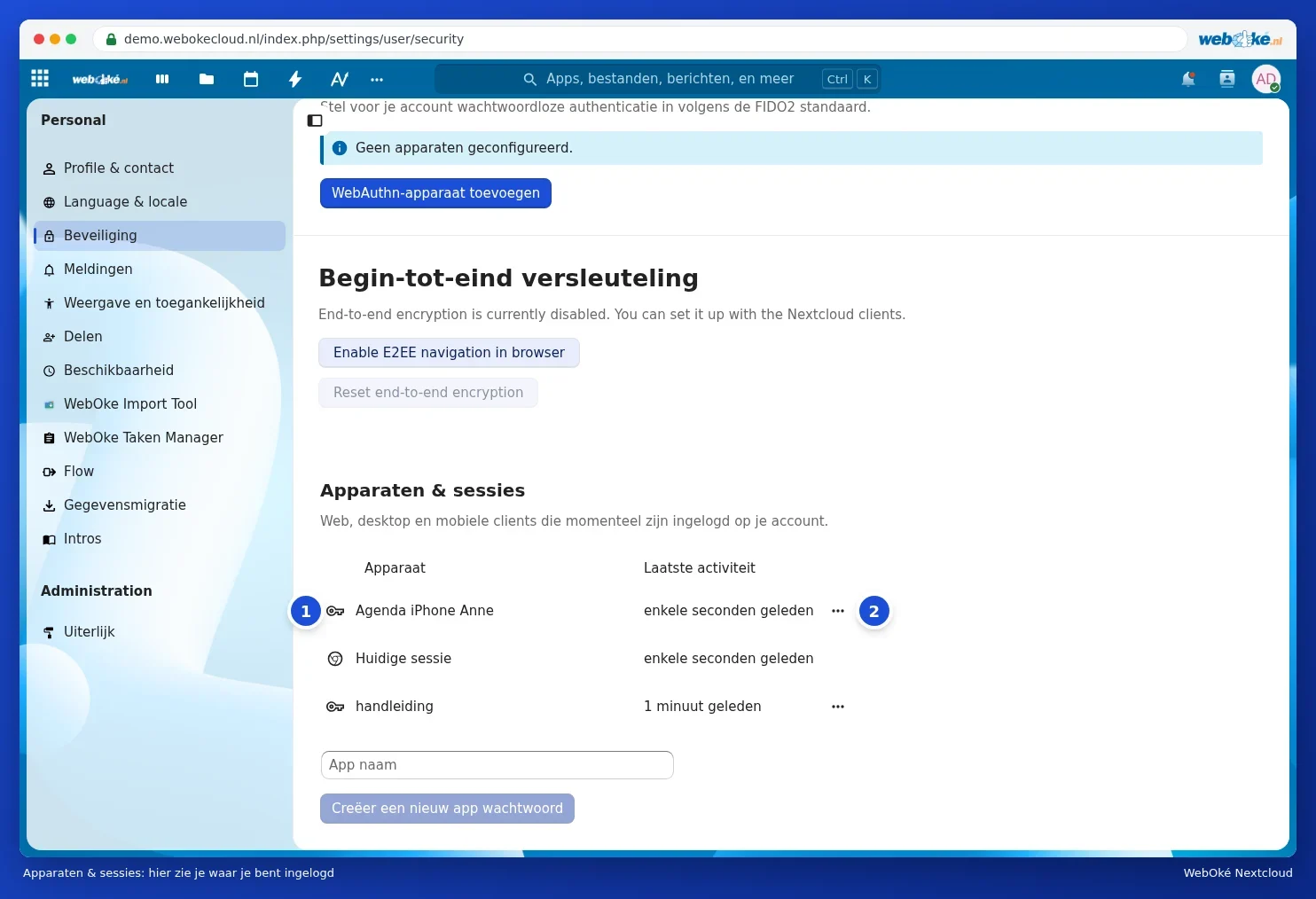
On each line, you'll see:
- Device (1): the name of an app password, an app such as the desktop app or the Nextcloud app with the type of device, or the browser you're logged in with. This session is the browser you're currently working in.
- Last activity: when that device last had contact with your Nextcloud.
- A three-dot button (2) showing what you can do with that device.
Tip: A key icon means an app password. For a browser, you'll see that browser's logo.
Locking out a device
Click the three dots next to the device. You'll then see a menu with these options:
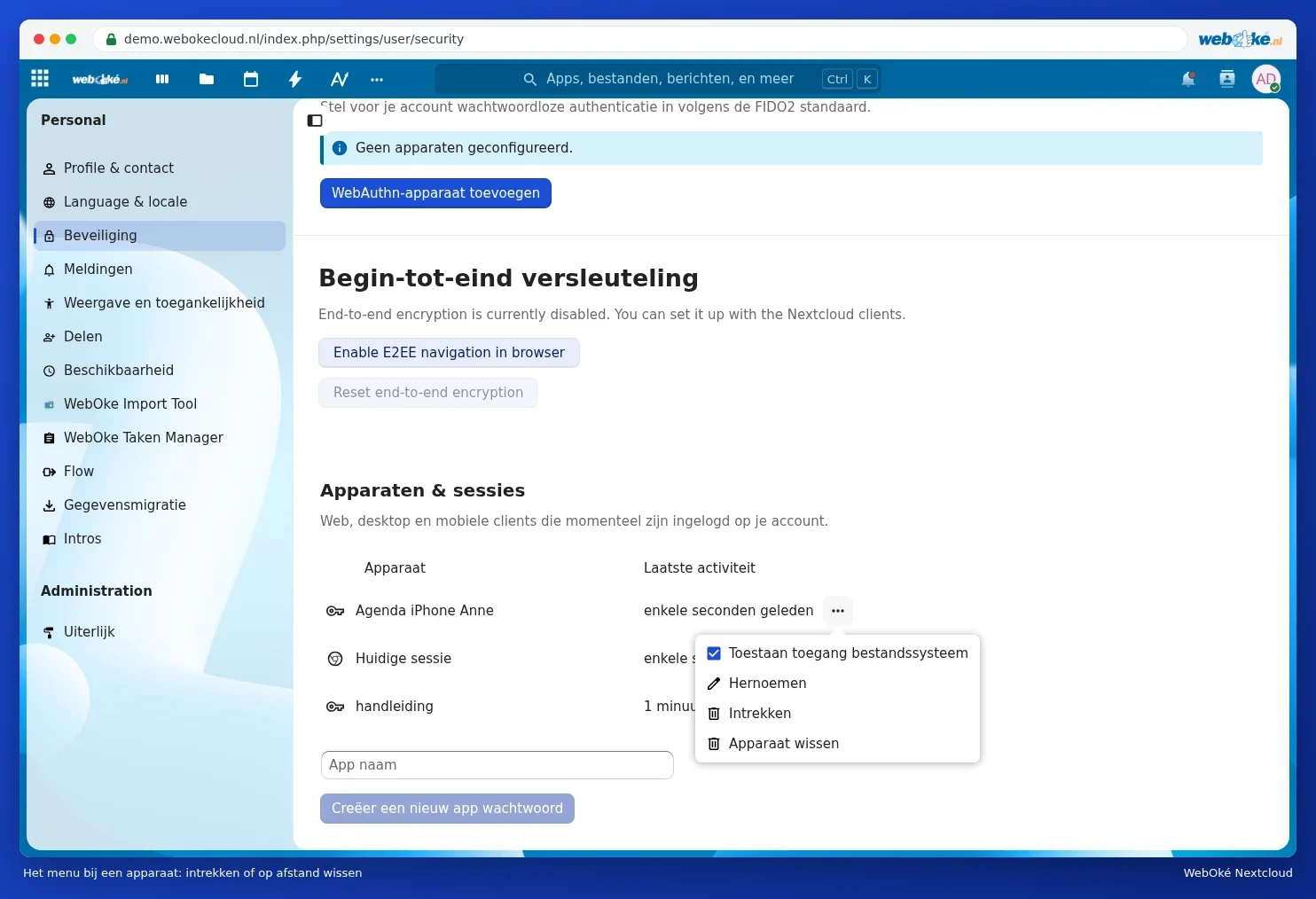
- Allow filesystem access: only for app passwords. If this box is ticked, the app can also access your files. If you only use the app password for your calendar and contacts, you can untick this box.
- Rename: give the device or app password a clearer name.
- Revoke: the device is logged out immediately and can no longer access your Nextcloud. Files already on the device stay there. Use this for an old laptop, an app you no longer use, or an app password you've lost.
- Wipe device: as soon as the device connects again, it's instructed to log out and delete the Nextcloud files stored on it. Use this for a stolen or lost laptop or phone.
For Revoke and Wipe device, your Nextcloud sometimes asks for your password first, to confirm it's really you.
Please note: Wipe device only works for the Nextcloud apps themselves (the desktop app and the mobile app), and only once the device comes back online. It only deletes what that app has synced, not the rest of the device. For a browser or an app using an app password, you revoke access instead; wiping isn't possible there. For what else to do in case of theft, see Remotely locking down a stolen laptop.
Logging a browser out on someone else's computer
Forgot to log out on someone else's computer? Find the browser in the list by its last activity and choose Revoke. You'll be logged out immediately.
What if I don't recognise something?
Do you see a device or browser you don't recognise, and it wasn't a housemate or colleague using your account either? Revoke the device and change your password straight away (Changing or forgetting your password). Also turn on an authenticator app (Setting up an authenticator app and saving backup codes) and check the password of your mailbox, since that's where your login codes arrive.